Step 1: Figure Out Which Kind of Router You Have
Before hunting for a login page, check which category your setup falls into, since the process is different for each:
- ISP-provided gateway or mesh system (Xfinity xFi, Spectrum, most current AT&T and Verizon equipment, Eero, Google WiFi/Nest WiFi): managed through a dedicated mobile app, not a browser admin page.
- Standalone router you purchased separately (ASUS, Netgear, TP-Link, Linksys, and similar): usually managed through a browser page at a local IP address, though many newer models also offer a companion app.
How to Check Data Usage by Brand
Xfinity (Comcast)
- Open the Xfinity app on your phone, or go to xfinity.com and sign in.
- Tap or select Overview, then look for the Data Usage section on the home screen.
- This shows your current billing cycle's total usage against your plan's allowance, updated daily.
Spectrum
- Open the My Spectrum app or log into your account online.
- Go to the Services or Internet tab.
- Spectrum's standard residential plans do not enforce a hard data cap, but the app still shows a usage estimate under your account details if you want to track it.
Eero (Amazon)
- Open the Eero app on your phone.
- Tap the Activity or Usage tab, depending on your app version.
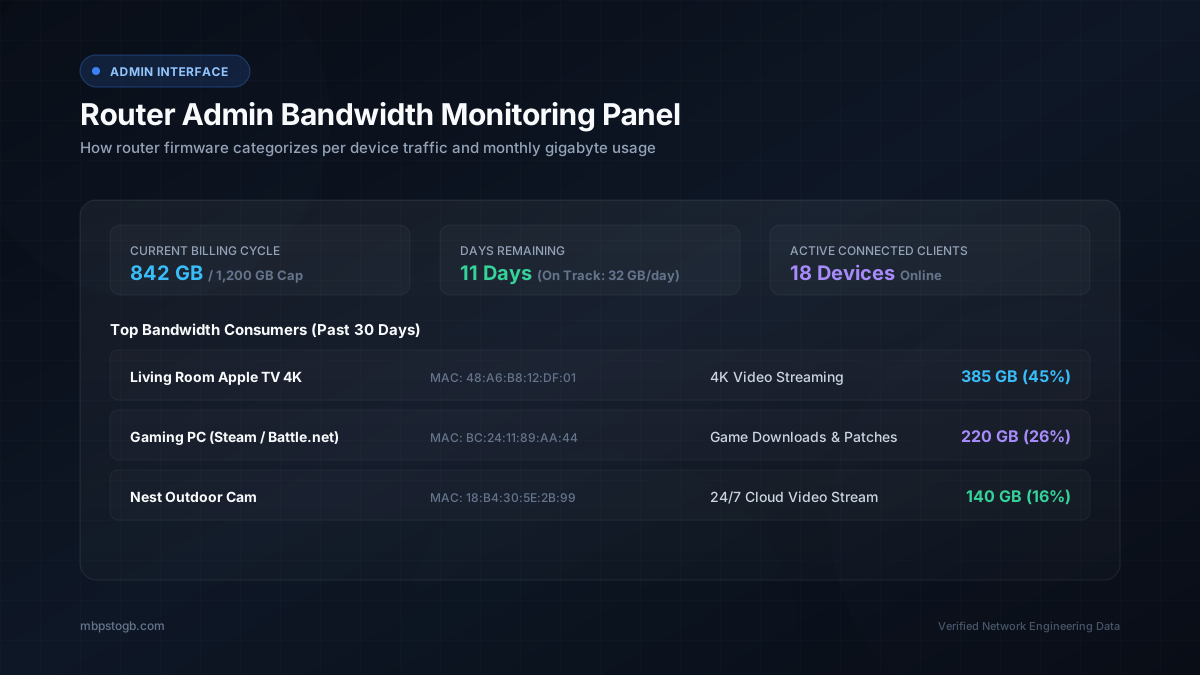
- Eero shows data usage broken down by connected device, which is useful for identifying which specific device is using the most data in your home.
Google WiFi / Nest WiFi
- Open the Google Home app.
- Tap your WiFi network, then look for Network Usage or a similar data section under network settings.
- Usage is shown per device, similar to Eero, letting you see which phones, computers, or smart home gadgets are using the most.
Netgear, ASUS, TP-Link, and Other Standalone Routers
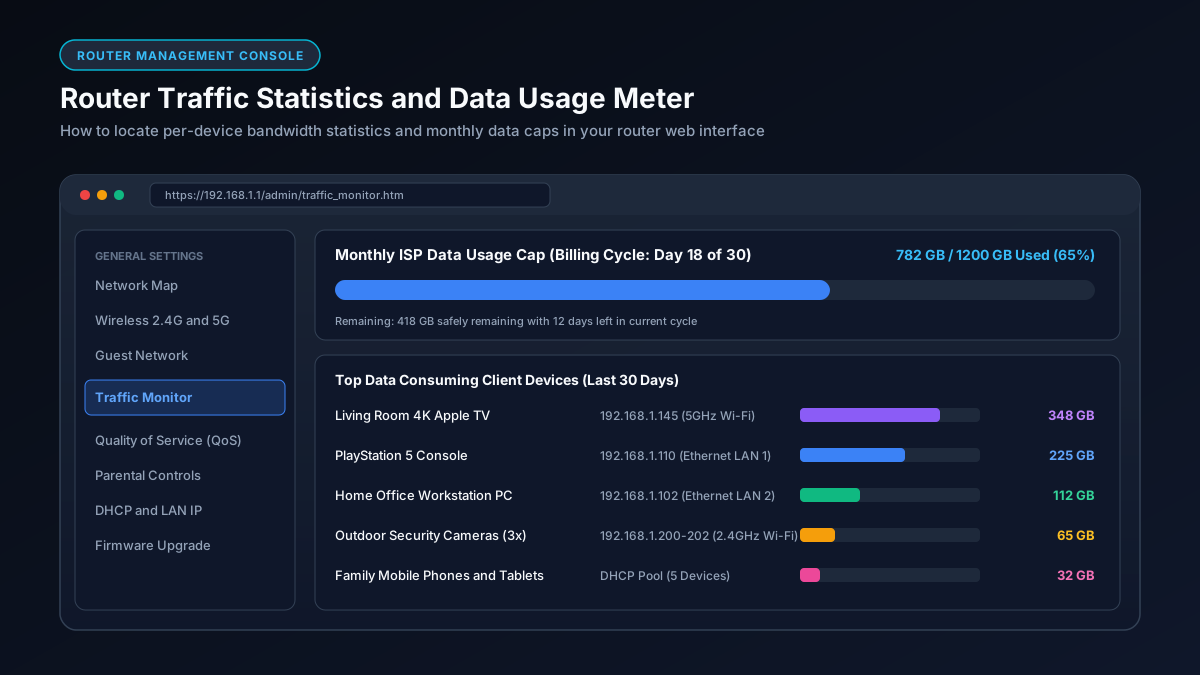
- Connect to your home WiFi, then open a browser and go to 192.168.1.1 or 192.168.0.1. If neither works, check the sticker on the router itself for the exact address.
- Log in with the admin username and password, usually found on the same sticker unless you have changed it.
- Look for a section labeled Traffic Meter, Bandwidth Monitor, or QoS, depending on the brand. Netgear calls this feature the Traffic Meter, found under Advanced settings. ASUS routers typically list it under Adaptive QoS or Traffic Analyzer.
- Many of these brands also offer a companion mobile app (Netgear Nighthawk, ASUS Router, TP-Link Tether) that shows the same information without needing to log into the browser panel.
Why Your ISP's Own Number Is the Most Reliable
Router and app based usage monitors are useful estimates, but your ISP's own account portal or app shows the number actually used for billing, which is the most authoritative figure if you are trying to avoid an overage charge or track against a specific plan's data cap. Router-side monitoring can differ slightly from the ISP's official count due to how each system measures and rounds usage.
Set a Usage Alert If Your Plan Has a Cap
Most major ISP apps let you set a notification at 75 or 90 percent of your monthly allowance, so you find out before you are close to an overage rather than after. This is worth setting up once and forgetting about, especially for households with a capped plan and multiple heavy data users.
What to Do If Your Usage Looks Unexpectedly High
If a usage check reveals a surprising number, our guide to what uses the most data at home walks through the most common culprits, from 4K streaming to background cloud backups, and our guide to how much data you actually need per month helps you figure out whether your current plan is sized correctly for your household.
Frequently Asked Questions
How do I check my data usage on my router?
It depends on your setup. ISP-provided gateways and mesh systems like Eero or Google WiFi use a mobile app, while standalone routers typically use a browser-based admin panel at 192.168.1.1 or 192.168.0.1.
Why doesn't my router have a browser login page?
Modern mesh systems and many current ISP gateways manage everything through a mobile app instead, which is more common in newer setups than the older browser-based admin panel.
Is my router's usage number the same as what my ISP bills me for?
Not always exactly. Router-side monitoring is a useful estimate, but your ISP's own app or account portal shows the official number used for billing purposes.
Can I see which specific device is using the most data?
Yes, on most mesh systems like Eero and Google WiFi, and on many standalone routers with a companion app. This is one of the most useful features for identifying an unexpected data hog in the house.
What if I forgot my router's admin login?
Check the sticker on the router itself, which usually lists the default username and password. If you changed it and forgot the new one, most routers can be factory reset using a small button on the device, though this also resets your WiFi name and password.