Every piece of networking advice states that a wired Ethernet connection is always faster, more reliable, and lower latency than Wi-Fi. Yet you run a speed test on your phone over Wi-Fi and pull 450 Mbps, but when you connect your desktop PC directly to your router with an Ethernet cable, your speed test refuses to cross 95 Mbps.
This counter-intuitive problem is one of the most common hardware troubleshooting tickets in home networking. Your computer is not broken, your ISP is not selectively throttling cables, and Wi-Fi has not magically surpassed physical wire physics. You have triggered an automatic IEEE auto-negotiation link-rate fallback.
The 100 Mbps Trap: Why Your Speed Caps at Exactly 94.8 Mbps
When you run a speed test on an Ethernet link that caps out between 90 and 95 Mbps (most commonly 94.8 Mbps), that number is not a coincidence.
Under the IEEE 802.3 Ethernet Standards, standard Fast Ethernet operates at a physical layer signaling rate of exactly 100 Mbps. However, every Ethernet packet carries framing headers, preamble sequences, interpacket gaps, and TCP/IP protocol overhead. When you subtract protocol headers, the maximum theoretical payload throughput of a 100 Mbps link is 94.92 Mbps.
If your speed test plateaus cleanly at this number, your network card has negotiated a 100 Mbps physical link rate with the router. Meanwhile, your modern smartphone connected to a 5 GHz Wi-Fi 6 access point using an 80 MHz channel negotiates a wireless PHY rate of 1,201 Mbps, easily passing 400 to 700 Mbps of real-world data over the air.
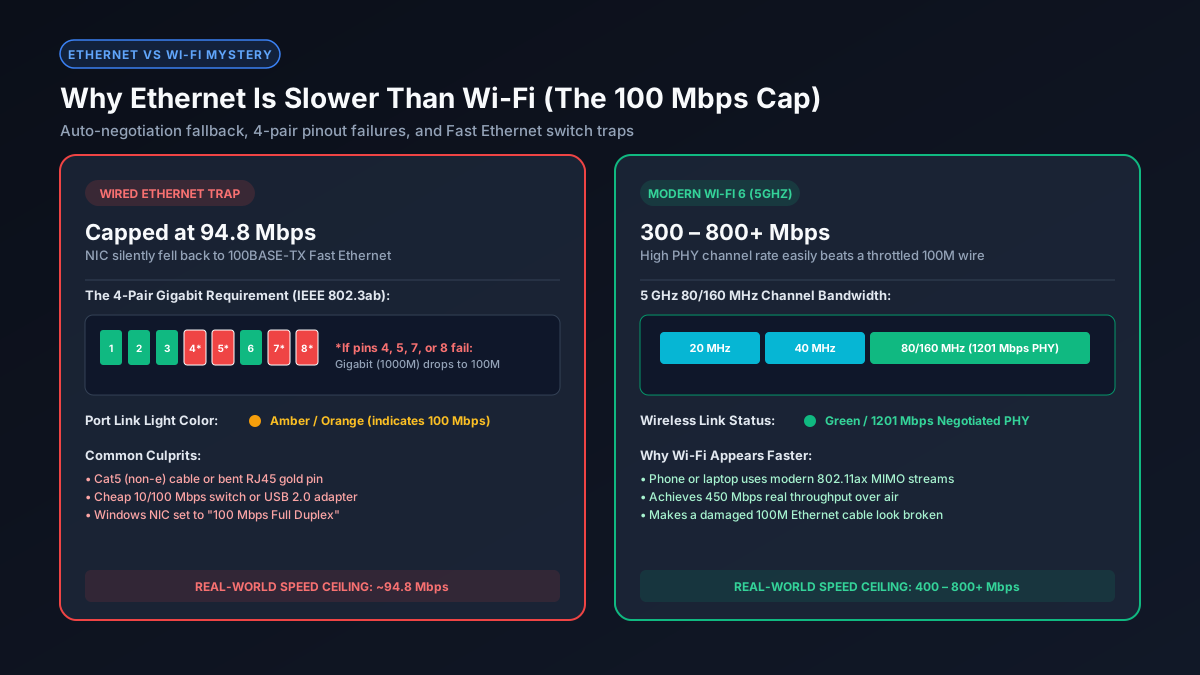
Cause 1: The 4-Pair Wire Requirement (A Broken Pin 4, 5, 7, or 8)
A standard RJ45 Ethernet cable contains eight copper conductors arranged into four twisted pairs:
- Fast Ethernet (100BASE-TX): Only requires two pairs (4 wires): Pins 1 & 2 (Transmit) and Pins 3 & 6 (Receive). Pins 4, 5, 7, and 8 are completely unused.
- Gigabit Ethernet (1000BASE-T): Strictly requires all four pairs (8 wires) transmitting bidirectionally simultaneously.
If your Ethernet cable gets pinched under a door, kinked behind a desk, stepped on, or has a damaged gold contact pin in the connector, an open circuit occurs. If just one single wire on pin 4, 5, 7, or 8 fails, the network interfaces cannot establish gigabit signaling.
Instead of dropping the connection and reporting an error, the Ethernet network card performs an automatic, silent Auto-Negotiation fallback down to 100BASE-TX using the surviving pins (1, 2, 3, 6). Your internet stays online, but your speed is permanently clamped to 94.8 Mbps.
Cause 2: Obsolete 10/100 Mbps Switches or Wall Plates
Many homeowners run their Ethernet cable into a desktop switch or an in-wall Ethernet jack installed during home construction.
If that desktop switch is an older "Fast Ethernet" model (often sold cheaply online as 10/100 Mbps), its physical ports physically lack gigabit transceivers. Regardless of whether you have a 1,000 Mbps fiber line and a 10 Gbps router, passing traffic through a 10/100 switch chokes the entire downstream run to 100 Mbps.
Furthermore, builders frequently terminated in-wall Cat5e cables using only two pairs to share telephone and internet over a single wall plate, physically preventing gigabit speeds.
Cause 3: USB 2.0 Ethernet Dongles and Hubs
Modern laptops lack built-in RJ45 ports, requiring USB-to-Ethernet adapters or USB-C multi-port hubs:
- USB 2.0 Port Limitation: If you plug a gigabit adapter into a legacy USB 2.0 port (typically black, without the blue SS icon), it is restricted by USB 2.0's 480 Mbps theoretical bus, yielding only 200–300 Mbps in practice.
- Cheap 10/100 USB Dongles: Ultra-cheap adapters frequently contain older Realtek RTL8152 chips that only support 100 Mbps Fast Ethernet. Always verify your adapter explicitly states "Gigabit" or "2.5GbE" (RTL8153 or RTL8156).
Cause 4: Powerline Ethernet Adapters
If your "Ethernet" connection relies on Powerline adapters (sending data through household electrical wiring), the speed is heavily degraded by electrical noise from appliances, phone chargers, and circuit breaker hops. While marketed as "AV1000" or "AV2000", real-world powerline throughput typically hovers between 30 Mbps and 90 Mbps, while modern 5 GHz Wi-Fi easily outpaces it.
Comparison: Wired Link Speeds vs. Modern Wi-Fi Standards
The table below demonstrates why a compromised wired connection appears significantly slower than modern wireless devices:
| Interface Standard | Physical Signaling Rate | Usable Real Throughput | Common Symptom |
|---|---|---|---|
| 100BASE-TX (Fast Ethernet) | 100 Mbps | 94.8 Mbps | Damaged cable, 10/100 switch, bent pin |
| Wi-Fi 5 (802.11ac 5 GHz) | 866 Mbps PHY | 350 – 550 Mbps | Standard smartphone 10ft from router |
| Wi-Fi 6 (802.11ax 5 GHz) | 1,201 Mbps PHY | 500 – 850 Mbps | Modern laptop on clean 80/160 MHz channel |
| 1000BASE-T (Gigabit Ethernet) | 1,000 Mbps | 940 – 960 Mbps | Flawless 8-pin Cat5e/Cat6 connection |
| 2.5GBASE-T (Multi-Gig Ethernet) | 2,500 Mbps | 2,350 Mbps | Cat6 cable on modern 2.5G ports |
How to Fix and Restore True Gigabit Ethernet (Checklist)
- Check Your Windows/macOS Link Speed:
- Windows 11: Go to Settings → Network & internet → Ethernet. Check Link speed (Receive/Transmit). If it says
100/100 (Mbps), your physical hardware link is throttled. It must read1000/1000 (Mbps). - macOS: Open System Settings → Network → Ethernet → Details → Hardware. Check Speed. It should say
1000baseT.
- Windows 11: Go to Settings → Network & internet → Ethernet. Check Link speed (Receive/Transmit). If it says
- Check Router Port LED Color: Inspect the RJ45 port LEDs on the back of your router or PC motherboard. On most networking hardware, a green LED indicates a 1000 Mbps Gigabit link, while an amber/orange LED indicates a 100 Mbps fallback.
- Swap the Cable for a Verified Cat6 or Cat6a: Replace the mystery cable with a certified patch cable. Cat5 (non-e) cables lack the twist density for reliable gigabit over distance. Read our complete guide to the best cable for 1Gb Ethernet to pick the right specification.
- Disable "Green Ethernet" / Energy Efficient Ethernet: In Windows Device Manager, expand Network adapters, right-click your Ethernet card, choose Properties → Advanced, and set Energy Efficient Ethernet (EEE) and Green Ethernet to Disabled. Some aggressive power-saving chipsets downgrade link speeds when idle and fail to re-negotiate gigabit.
- Verify Speed & Duplex Is Set to Auto-Negotiation: In the same Advanced menu, locate Speed & Duplex. Ensure it is set to Auto Negotiation. Never manually force "1.0 Gbps Full Duplex" if auto-negotiation is failing, as the IEEE 802.3ab specification requires auto-negotiation clock synchronization for 1000BASE-T.
Frequently Asked Questions
Why is my Ethernet capping at exactly 94 or 95 Mbps?
A speed test capping at 94.8 Mbps is the classic hallmark of a 100 Mbps Fast Ethernet link. Due to standard protocol overhead, 100 Mbps physical links max out at 94 to 95 Mbps of usable throughput. This happens when a port, cable, or adapter auto-negotiates to 100BASE-TX instead of Gigabit.
Can a damaged cable cause Ethernet to drop from 1 Gbps to 100 Mbps?
Yes. Gigabit Ethernet requires all 8 copper wires in an RJ45 cable. Fast Ethernet only uses 4 wires (pins 1, 2, 3, and 6). If a single wire on pins 4, 5, 7, or 8 is damaged, your network card silently downgrades the link to 100 Mbps without disconnecting.
Why is my phone faster on Wi-Fi than my wired PC?
Modern smartphones use Wi-Fi 6 on the 5 GHz band with 80 MHz channel widths, providing wireless PHY rates of 1,201 Mbps and real throughput of 400 to 700 Mbps. If your PC cable has fallen back to a 100 Mbps wired link, modern Wi-Fi easily outpaces the throttled wire.
How do I verify if my switch or adapter supports gigabit?
Look at the product model label. If it specifies '10/100', it physically cannot exceed 100 Mbps. You need hardware explicitly designated as '10/100/1000' or 'Gigabit Ethernet'.
Explore Related Network Troubleshooting Tools
- Why Am I Not Getting Gigabit Speeds? — full systematic guide to diagnosing router, modem, and ISP-level speed caps.
- Best Cable for 1Gb Ethernet — Cat5e vs Cat6 vs Cat6A tested and compared.
- Wi-Fi Slower Than Advertised? — understand wireless attenuation and interference factors.
- Mbps to GB Download Calculator — test and calculate file transfer speeds in megabytes and gigabytes.