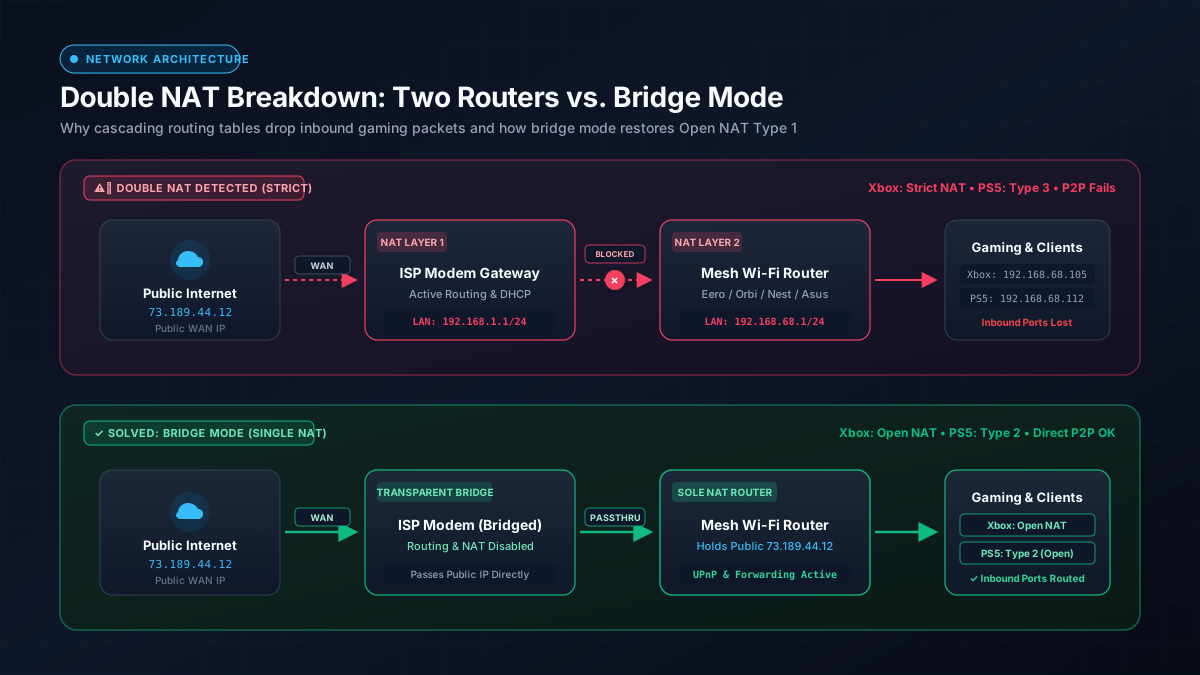
Quick Answer: What Is Double NAT and How Do You Fix It?
Double NAT (Network Address Translation) happens when you connect a standalone Wi-Fi router or mesh system (like eero, Google Nest, or Netgear Orbi) into an ISP-supplied modem that already has a built-in router. Both devices attempt to manage private IP addresses and firewall translation at the same time.
The Fix: Put your ISP modem/gateway into Bridge Mode (disabling its internal router), or switch your mesh Wi-Fi system into Access Point (AP) Mode. This restores a single, unified network table with Open NAT Type 1/2.
How NAT Works vs. How Double NAT Breaks Connections
To understand why Double NAT causes connection headaches, it is essential to first understand what standard Network Address Translation does on an ordinary residential broadband connection.
Single NAT: Translating One Public IP to Multiple Private IPs
Your Internet Service Provider assigns your home a single Public IPv4 Address (such as 73.189.44.12). However, modern households connect dozens of devices simultaneously: smartphones, laptops, smart TVs, and consoles.
Because there are not enough IPv4 addresses globally for every gadget, your router uses NAT (defined under IETF RFC 1918) to create a private local network—typically within the 192.168.1.0/24 or 10.0.0.0/24 range. When your PC requests a webpage, your router swaps your PC's private IP with the public IP, tracks the request in its translation table, and directs the returning data back to your PC. This single-hop translation is completely transparent and seamless.
Double NAT: The Two-Router Isolation Trap
Double NAT occurs when two active routers are chained together in series. If you are unsure whether your provider equipment is a standalone modem or a 2-in-1 combo unit, see our breakdown of modem vs. router differences to understand each unit's role in your network.
- Router 1 (ISP Gateway): Connects to the Internet, receives public IP
73.189.44.12, and creates Private Subnet A (e.g.,192.168.1.1). - Router 2 (Your Mesh Router): Plugs its WAN port into Router 1, receives a private IP from Router 1 (e.g.,
192.168.1.50), and creates Private Subnet B (e.g.,192.168.68.1). - Your Gaming Console or PC: Connects to Router 2 and receives an IP on Subnet B (e.g.,
192.168.68.105).
Instead of one translation layer, every data packet must navigate two independent firewalls and two isolated routing tables.
Why Outbound Traffic Works While Inbound Traffic Fails
Web browsing, watching YouTube, and downloading game files continue to work normally because your devices initiate the requests outward. Outbound connections punch temporary pathways through both NAT firewalls that allow server responses back in.
The problem arises with unsolicited inbound traffic. In peer-to-peer multiplayer games (like Call of Duty, FIFA, or Halo), another player's console sends data packets directly to your public IP. When those packets hit Router 1, Router 1 has no translation record indicating which device on Router 2 needs the packet, so the firewall drops it immediately. The inbound handshake never reaches your console.
Why Double NAT Ruins Online Gaming, Smart Homes, and Servers
Double NAT does not typically show up during a basic speed test, but it produces specific, frustrating network failures across everyday applications:
Xbox Series X/S and PS5 Console Gaming (NAT Type 3 & Strict NAT)
Modern gaming consoles perform active network diagnostics upon boot to assess multiplayer readiness:
- Xbox: Displays "Double NAT Detected" and switches NAT type to Strict. You will be unable to host multiplayer lobbies, join party voice chats, or connect with players who have Moderate or Strict NAT.
- PlayStation (PS4/PS5): Reports NAT Type 3 (Strict). Matchmaking matchmaking queues become significantly longer, voice chat frequently disconnects with error codes, and peer-to-peer sessions fail to establish.
- Nintendo Switch: Drops to NAT Type D or F, preventing connection to Mario Kart or Super Smash Bros lobbies.
Because discarded inbound handshakes frequently masquerade as unstable Wi-Fi drops, see our diagnostic guide on how to fix packet loss in gaming to isolate router configuration issues from line-level packet drops.
VoIP and Video Calls (Discord, Teams, and Wi-Fi Calling)
Voice-over-IP protocols (SIP, RTP) require direct two-way audio streams. Under Double NAT, outbound audio packets may reach the other caller, but inbound audio packets fail to route through the second firewall. This leads to "one-way audio" where you can hear the caller, but they cannot hear you, or calls abruptly drop after 30 seconds.
Smart Home Devices, Plex Media Servers, and Home NAS Remote Access
If you host a home media server (Plex, Jellyfin) or a Network Attached Storage (NAS) unit for remote file access, port forwarding configured on your primary router will fail. External connection requests hit the ISP gateway and stop cold because the gateway does not communicate with the secondary router's port forwarding rules. Similarly, smart home devices on different subnets (e.g., smart bulbs on the ISP router and a phone on the mesh Wi-Fi) will be unable to discover each other via mDNS or UPnP.
How to Test for Double NAT in Under 60 Seconds
You can verify whether Double NAT is active on your connection using two quick diagnostic tests:
Method 1: The Windows and Mac Traceroute Command
Open Command Prompt (Windows) or Terminal (macOS/Linux) and trace the path to a reliable public DNS address:
Examine the first two hops of output:
- Normal (Single NAT):
Hop 1: 192.168.1.1 (Your router)
Hop 2: 100.x.x.x or public ISP node (Clean internet path)
- Double NAT Active:
Hop 1: 192.168.68.1 (Your mesh router)
Hop 2: 192.168.1.1  (Your ISP gateway — private IP on hop 2 confirms Double NAT!)
If you see two consecutive private IP addresses (starting with 192.168.x.x, 10.x.x.x, or 172.16.x.x to 172.31.x.x), your connection is running through two routers.
Method 2: Checking Your Secondary Router's WAN IP Address
Log into your personal router's administration interface or mobile app (eero, Netgear Orbi, Asus, etc.) and check its Internet / WAN IP address:
- If the WAN IP begins with
192.168.x.x,10.x.x.x, or172.16.x.x, your router is receiving a private local address from another upstream router. You have Double NAT. - If the WAN IP matches the public IP shown when you visit a website like whatismyipaddress.com, your router is connected directly to the Internet with Single NAT.
Warning: Differentiating Double NAT from Carrier-Grade NAT (CGNAT)
If your router's WAN IP falls in the range of 100.64.0.0 through 100.127.255.255, you are on Carrier-Grade NAT (CGNAT). This is common with mobile 5G Home Internet (T-Mobile, Verizon 5G Home), Starlink satellite, and rural fiber providers. CGNAT is performed by your ISP at their exchange, meaning changing settings on your personal router will not remove it without requesting a static public IP from the provider.
The 4 Proven Methods to Fix Double NAT
Eliminating Double NAT requires ensuring that only one device on your entire network performs routing and NAT. Choose the method below that matches your equipment:
| Method | Action Required | Best Suited For | Gaming Impact |
|---|---|---|---|
| 1. Bridge Mode (ISP) | Turn on Bridge Mode on your ISP modem/gateway | Cable (Xfinity, Spectrum, Cox) & standalone modems | 100% Fixed (Open NAT) |
| 2. IP Passthrough | Pass public WAN IP directly to secondary router MAC | AT&T Fiber (BGW320/210) & Verizon FiOS gateways | 100% Fixed (Open NAT) |
| 3. AP Mode (Mesh) | Switch mesh Wi-Fi to Access Point mode | Users wanting ISP router features & simple setup | 100% Fixed (Open NAT) |
| 4. DMZ Hosting | Place secondary router IP in ISP gateway's DMZ | Locked gateways lacking bridge mode options | Workaround (Moderate NAT) |
Method 1: Enable True Bridge Mode on Your ISP Gateway (Recommended)
This is the gold-standard networking solution. Putting your ISP gateway into Bridge Mode turns off its Wi-Fi radios, DHCP server, and NAT routing engine, turning it into a pure pass-through modem.
- Connect a computer directly to the ISP gateway via Ethernet cable.
- Open your web browser and navigate to the gateway's IP address (typically
192.168.1.1,192.168.0.1, or10.0.0.1). - Log in using the admin credentials printed on the gateway sticker.
- Navigate to Gateway > At a Glance or Connection > Advanced.
- Locate the Bridge Mode toggle and switch it to Enable.
- Save and allow the gateway to reboot. Once rebooted, plug your third-party router's WAN port into Ethernet Port 1 on the gateway.
Your third-party router will now pull the public IP address directly, completely eliminating Double NAT. Furthermore, having a single dedicated router handle routing allows you to configure Smart Queue Management (SQM) to eliminate lag spikes caused by queue delay—read our guide on what is bufferbloat and how to fix it.
Method 2: Configure IP Passthrough or DMZplus (AT&T & Verizon Gateways)
Certain fiber gateways (such as AT&T's BGW320 and BGW210) do not offer a traditional bridge mode toggle because telephone (VoIP) or TV services depend on the gateway remaining active. Instead, they provide IP Passthrough:
- Access the gateway configuration page (typically
192.168.1.254for AT&T). - Go to Firewall > IP Passthrough.
- Set Allocation Mode to Passthrough.
- Set Passthrough Mode to DHCPS-fixed.
- Select the MAC address of your personal router from the device list.
- Disable 2.4 GHz and 5 GHz Wi-Fi on the ISP gateway so it does not compete for wireless airtime with your mesh system.
Method 3: Switch Your Mesh System into Access Point (AP) Mode
If you prefer to let the ISP gateway manage your home network (or your ISP contract prevents altering gateway settings), you can disable routing on your third-party mesh system:
- eero: Open the eero app > Settings > Network Settings > DHCP & NAT > Select Bridge.
- Netgear Orbi: Log into
orbilogin.com> Advanced > Advanced Setup > Router / AP Mode > Select AP Mode. - TP-Link Deco: Open the Deco app > More > Advanced > Operation Mode > Select Access Point.
- Asus ZenWiFi: Administration > Operation Mode > Select Access Point (AP) mode.
In AP Mode, your mesh nodes still provide seamless, whole-home wireless coverage, but they stop handing out IP addresses. The ISP gateway serves as the sole router, restoring Single NAT across all devices. If you are comparing mesh platforms for your home, check our detailed benchmark comparison of eero vs. Orbi mesh Wi-Fi systems.
Method 4: Assign Your Secondary Router to the ISP Gateway's DMZ
If your ISP gateway has no bridge mode and you cannot use AP mode (because you require advanced parental controls, VPNs, or QoS features on your personal router), you can configure a DMZ (Demilitarized Zone):
- Assign a static private IP to your secondary router on the ISP gateway's subnet (e.g.,
192.168.1.100). - In the ISP gateway's settings, locate Firewall > DMZ.
- Enter
192.168.1.100as the DMZ host IP address and save.
The gateway will forward all unsolicited incoming data packets straight through to your secondary router without inspecting or filtering them, effectively bypassing the first firewall. Similar cascading network challenges occur when operating portable hotspots and travel gear—see our technical tutorial on how to use a travel router for hotel Wi-Fi.
Summary Checklist: Achieving Open NAT
Double NAT is one of the most common causes of unexplained gaming drops, party chat disconnects, and smart home isolation. By enforcing a single router architecture:
- Consoles: Xbox displays Open NAT; PlayStation achieves NAT Type 2 (Open).
- Performance: Peer-to-peer matchmaking handshakes connect on the first attempt with zero packet loss.
- Simplicity: UPnP port forwarding and local network file sharing work smoothly across all family devices.