You pay your internet service provider every single month for a blistering fast gigabit connection. You eagerly load up a speed test and expect to see massive numbers. The results appear and you are met with a fraction of what was promised. You might wonder if your provider is scamming you or if your equipment is broken. This is a common and incredibly frustrating experience for millions of internet users.
The truth is that advertised internet speeds represent a theoretical maximum under absolute perfect conditions. Your daily internet usage happens in the real world. The real world is full of physical obstacles, radio interference, software bottlenecks, and overloaded networks. Understanding these hidden factors is the first step toward getting the speed you actually pay for.
In this comprehensive guide, we will break down every single reason your WiFi feels slower than it should. We will look at physical barriers in your home. We will examine wireless interference from your neighbors. We will also provide actionable steps you can take today to optimize your network. You do not need to be an IT professional to understand these concepts. You just need to know where to look.
The Difference Between Ethernet and WiFi
Many people confuse their internet connection with their WiFi network. Your internet connection is the wire coming into your home from the street. Your WiFi network is the wireless signal broadcasted by the router inside your house. These are two completely separate things. When you pay for a specific speed, you are paying for the capacity of the wire coming into your house.
If you connect a computer directly to your router with an Ethernet cable, you will likely see the full speed. This is because cables offer a dedicated and insulated path for data. You can read more about this in our Ethernet cable buying guide. Wireless signals are completely different. WiFi broadcasts data through the open air. Open air is chaotic and full of invisible roadblocks.
A good way to visualize this difference is to think of a water hose. An Ethernet connection is like a hose firmly attached to a faucet. The water flows directly into the bucket without spilling. A WiFi connection is like a lawn sprinkler. The sprinkler sprays water in all directions. Some water reaches the grass, but much of it blows away in the wind or evaporates. Data behaves exactly the same way when transmitted wirelessly.
Network Overhead Quietly Eats Your Bandwidth
Even if you have a flawless Ethernet connection, you will never see the exact advertised speed. This is due to something called network overhead. Data does not travel naked across the internet. It gets wrapped in digital envelopes called packets. These packets contain essential routing information. They include sender addresses, receiver addresses, and error checking codes. This extra data takes up space on your connection.
Network overhead typically consumes about five to ten percent of your total bandwidth. If you pay for a 1000 Mbps connection, overhead might reduce your usable speed to around 940 Mbps. This is completely normal and unavoidable. It is simply the cost of doing business on the internet. You can learn more about this in our detailed network overhead guide.
Physical Obstacles Block Wireless Signals
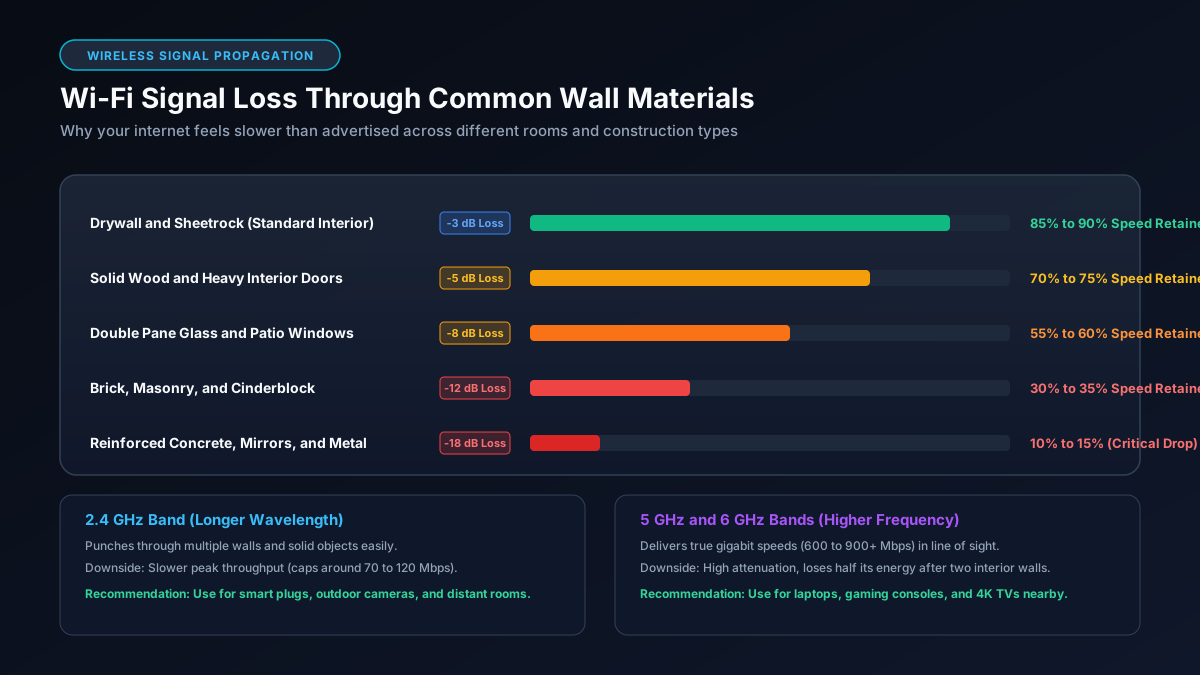
Wireless signals are just radio waves. They act similarly to light. If you shine a flashlight at a wall, the light stops. If you shine it through a window, the light passes through. WiFi signals pass through some materials easily but are blocked completely by others. Understanding your home layout is critical for maximizing speed.
Drywall and wood are relatively easy for WiFi signals to penetrate. They will slightly reduce the signal strength. Brick, concrete, and stone are terrible for WiFi. They are dense and absorb radio waves like a sponge. Water is also a massive barrier. If you place a router next to a large fish tank, the water will scatter the signal. Metal is the absolute worst enemy of WiFi. Refrigerators, filing cabinets, and metal doors will bounce the signal randomly.
Your router placement dictates how many physical obstacles the signal must defeat. Many people hide their router in a closet or behind a television to keep things tidy. This is a massive mistake. You are forcing the signal to fight through electronics and walls before it even reaches the open room. A router should be placed centrally and high up. Put it on a bookshelf or mount it to a wall for the best results.
Wireless Interference Destroys Performance
WiFi does not operate in a vacuum. It shares the airwaves with countless other devices. Your microwave oven operates on the exact same 2.4 GHz frequency as older WiFi standards. When you heat up a burrito, your microwave leaks tiny amounts of radiation that scramble wireless data. Bluetooth devices, baby monitors, and cordless phones also crowd the same airspace.
Your neighbors are another major source of interference. If you live in a dense apartment building, there might be dozens of routers blasting signals simultaneously. Routers communicate on specific channels. If everyone in your building uses the default channel, it is like trying to have a conversation at a loud rock concert. The data packets collide and must be retransmitted. This causes severe lag and reduced speeds.
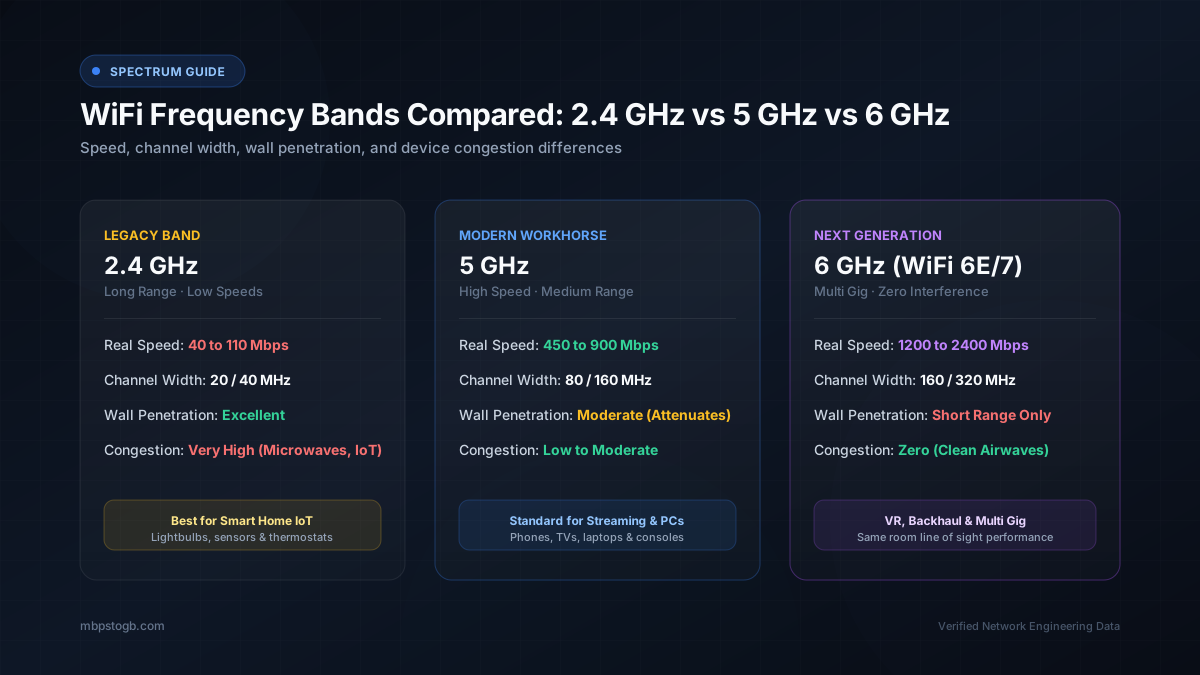
Most modern routers offer dual band or tri band functionality. They broadcast on both 2.4 GHz and 5 GHz frequencies. The 2.4 GHz band is slow but travels far and punches through walls easily. The 5 GHz band is incredibly fast but has a very short range. If your phone connects to the 2.4 GHz band because you walked too far away, your speed will plummet. Make sure you connect to the 5 GHz band whenever possible for the highest speeds.
Hardware Bottlenecks Slow Everything Down
Your internet connection is only as fast as its weakest link. You might have gigabit fiber internet, but an outdated piece of hardware can ruin it. This applies to both your networking equipment and your personal devices. An older smartphone from five years ago simply lacks the modern WiFi chips required to process gigabit speeds. It physically cannot download data that fast.
Your modem and router might also be holding you back. If you are renting an old modem from your provider, it might not support the latest DOCSIS standards required for high speeds. Consider upgrading to the best modem for Xfinity Gigabit or your respective provider. Your router also needs sufficient processing power to route data to multiple devices. If your router is cheap and old, it will choke under a heavy load.
Cables matter too. A damaged or low quality Ethernet cable connecting your modem to your router will bottleneck the entire house. Ensure you use high quality cables. It is an inexpensive fix that yields massive results. Even the storage drive on your computer can be a bottleneck. If you are downloading massive files to an old mechanical hard drive, the drive might not write data fast enough to keep up with your internet connection.
Provider Throttling and Network Congestion
Sometimes the problem actually is your internet service provider. Providers sell internet access based on the assumption that not everyone will use their maximum speed at the same time. This is called oversubscription. If everyone in your neighborhood starts streaming 4K movies at eight o'clock in the evening, the local network node can become congested. Your speed will drop significantly during these peak hours.
Providers may also actively throttle your connection. Throttling is the intentional slowing of internet service by an ISP. They typically do this if you exceed a monthly data cap. Some providers offer unlimited plans but include fine print stating they can deprioritize your traffic if you use an exorbitant amount of data. You can read our guide on unlimited vs capped data plans to learn more about these restrictions.
To determine if network congestion is the issue, run speed tests at different times of the day. Test your speed early in the morning, right after lunch, and late at night. If your speeds are consistently fast in the morning but terrible in the evening, you are likely experiencing neighborhood congestion. There is not much you can do about this besides complaining to your provider or switching to a different company.
Understanding Device Data Usage
It is important to understand how much data your devices actually need. A 4K Netflix stream only requires about 25 Mbps of bandwidth. Online gaming uses very little data but requires low latency. You can check out our detailed breakdowns on Netflix data usage or online gaming data usage for specific numbers.
If you have a 500 Mbps connection and a speed test shows you getting 200 Mbps over WiFi, you might feel disappointed. However, 200 Mbps is still plenty of speed to run multiple 4K streams simultaneously. Do not get too obsessed with chasing theoretical maximum numbers on speed tests. If your internet feels fast and responsive during daily tasks, your network is likely functioning perfectly fine for your needs.
Actionable Steps to Fix Slow WiFi
Now that you understand the underlying causes of slow WiFi, let us look at some practical steps you can take today to improve your situation.
- Relocate your router: Move your router to a central, elevated location. Get it out of the closet and away from thick masonry walls. Avoid placing it near large appliances or fish tanks.
- Use the 5 GHz band: Ensure your bandwidth heavy devices like gaming consoles and smart TVs are connected to the 5 GHz frequency instead of 2.4 GHz. This will provide a massive speed boost if they are close to the router.
- Change your wireless channel: Log into your router administration page and change the broadcasting channel. Try channels 1, 6, or 11 for the 2.4 GHz band to avoid overlap. Most modern routers offer an auto channel feature that works reasonably well.
- Update router firmware: Manufacturers frequently release updates that improve stability and performance. Check your router settings to ensure you are running the latest firmware version.
- Reboot everything: The classic IT advice works for a reason. Unplug your modem and router, wait thirty seconds, and plug them back in. This clears out temporary memory errors and often resolves lingering connection issues.
- Evaluate your coverage area: If your home is very large, a single router might not be enough. Consider upgrading to a mesh network system. Mesh systems use multiple nodes placed around the house to blanket your home in a strong, seamless signal.
If you have tried all of these steps and your speeds are still abysmal, it is time to contact your internet service provider. Ask them to send a technician to check the lines outside your home. Sometimes squirrels chew on the cables or weather damage degrades the physical connection. A technician can test the line and repair any outside damage.
Converting Speeds to Make Sense of Downloads
Speed tests measure your connection in Megabits per second, or Mbps. File sizes are measured in Megabytes, or MB, and Gigabytes, or GB. This difference in terminology causes massive confusion. One byte equals eight bits. This means a 100 Mbps connection will not download 100 Megabytes in one second. It will download roughly 12.5 Megabytes in one second.
If you want to know exactly how long a file will take to download based on your actual speed test results, use our Mbps to GB download calculator. It removes all the confusing math. You can also explore our specific guides on how long it takes to download a 100GB game or a 4K movie download time. Understanding the math behind the marketing will help set realistic expectations for your home network.
Frequently Asked Questions
Why am I only getting half the internet speed I pay for?
WiFi overhead and distance often cut speeds in half. Wireless signals lose strength as they travel through walls and furniture. Plug a device directly into your router with an Ethernet cable to test your true speed.
Do old devices slow down my entire WiFi network?
Yes, older devices can force your router to work harder and transmit data more slowly. A single old device can reduce the overall efficiency of your wireless network. You should upgrade ancient laptops or phones if they cause bottlenecks.
Can my neighbors ruin my WiFi speed?
Your neighbors can definitely cause wireless interference. If everyone uses the same channel, the wireless airspace becomes crowded. Changing your router channel can provide an instant speed boost in apartments.
Does my internet provider throttle my connection speeds?
Providers typically throttle speeds only if you exceed a monthly data cap. They may also prioritize traffic during peak evening hours. You can read your service agreement to see if data caps apply to your plan.
Will buying a new router increase my internet speed?
A new router will only help if your current one is outdated or damaged. It cannot magically give you faster speeds than your provider supplies. However, a new router can better distribute your existing speed to multiple devices.
More Helpful Networking Resources
- Why Am I Not Getting Gigabit Speeds, explore deeper reasons behind gigabit bottlenecks.
- Check Data Usage on Your Router, find out which devices are hogging your bandwidth.
- Reduce Streaming Data Usage, optimize your video streaming to stay under data caps.
- Megabits to Gigabytes Converter, quickly translate internet speed marketing into real download terms.