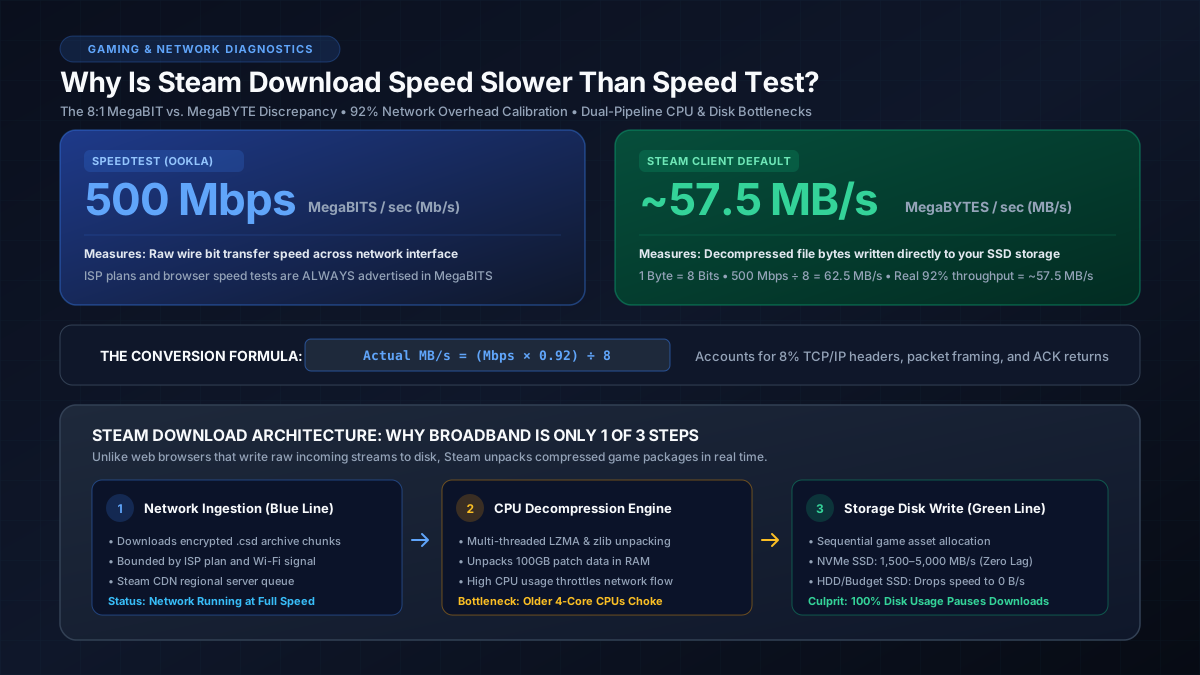
Quick Answer: Why Steam Speeds Look Slower Than Speed Tests
Unit Mismatch (8:1 Ratio): Speed tests measure network wire throughput in Megabits per second (Mbps). Steam measures file write size in Megabytes per second (MB/s). One Byte contains 8 Bits, meaning your speed test number must be divided by 8.
Network Framing Overhead (~8%): Raw bitstreams include TCP/IP packet headers, Ethernet framing, and handshake acknowledgments. A 500 Mbps plan yields a real-world maximum of approximately 57.5 MB/s, not 62.5 MB/s.
Dual-Pipeline Bottleneck: Steam downloads compressed archive chunks that your CPU must decompress and your SSD must write to disk simultaneously. If disk usage hits 100%, network downloading pauses to wait for the drive to catch up.
The Fundamental Metric Confusion: MegaBITS vs. MegaBYTES
The single most common reason gamers believe their Steam client is downloading slowly is a simple misunderstanding of telecommunication units. Broadband internet providers advertise network speeds in Megabits per second (Mbps) with a lowercase "b", while computer operating systems and file download managers display disk write rates in Megabytes per second (MB/s) with an uppercase "B":
- 1 Byte (B) = 8 Bits (b)
- 1 Megabyte (MB) = 8 Megabits (Mb)
If your speed test reports 400 Mbps, your connection is transferring 400 million bits per second across your router. To calculate how many megabytes of game files that represents, you must divide by 8: 400 ÷ 8 = 50 MB/s. If you want to explore the mathematical foundation behind bit-to-byte translations, read our comprehensive guide on bit vs byte explained.
Factoring in the 92% Network Overhead Calibration
Raw division (Mbps ÷ 8) yields a theoretical maximum that is impossible to achieve across real residential internet connections. Every packet transmitted across the web requires Layer 3 IPv4/IPv6 packet headers, Layer 2 Ethernet framing, TCP sequence checksums, and reverse ACK confirmation packets:
At MbpsToGB, our lab benchmarks employ our calibrated 92% real-world network overhead standard. On a 500 Mbps fiber line, 500 × 0.92 ÷ 8 = 57.5 MB/s. If your Steam download fluctuates between 55 and 59 MB/s, your internet connection is delivering 100% of its advertised performance. To convert your exact connection speed, test our Mbps to MB/s converter.
Master Speed Expectation Matrix: Speedtest Mbps vs. Real Steam MB/s
The table below provides exact expected download rates across standard residential broadband tiers, comparing raw advertised speeds against realistic Steam throughput:
| ISP Plan (Mbps) | Theoretical Max (Mbps ÷ 8) | Real Steam Speed (92% Overhead) | Time to Download 50GB Game | Hardware Bottleneck Risk |
|---|---|---|---|---|
| 50 Mbps | 6.25 MB/s | ~5.75 MB/s | ~2 Hours 25 Mins | None (Network Bound) |
| 100 Mbps | 12.50 MB/s | ~11.50 MB/s | ~1 Hour 13 Mins | None (Network Bound) |
| 200 Mbps | 25.00 MB/s | ~23.00 MB/s | ~36 Minutes | None (Network Bound) |
| 300 Mbps | 37.50 MB/s | ~34.50 MB/s | ~24 Minutes | Low (Slow HDD May Stutter) |
| 500 Mbps | 62.50 MB/s | ~57.50 MB/s | ~14 Minutes | Moderate (HDD & 4-Core CPU) |
| 1,000 Mbps (1 Gbps) | 125.00 MB/s | ~115.00 MB/s | ~7 Minutes | High (Requires SATA/NVMe SSD) |
| 2,500 Mbps (2.5 Gbps) | 312.50 MB/s | ~287.50 MB/s | ~3 Minutes | Extreme (Requires Fast NVMe SSD) |
To estimate exact download times for modern 50GB to 150GB titles like Call of Duty, Cyberpunk 2077, or Baldur's Gate 3, use our dedicated Steam download calculator.
Steam's Dual-Pipeline Engine: Download vs. Disk Write
The second major reason Steam download speeds fluctuate or appear throttled relates to how Valve delivers games to your computer. When you download a movie through a web browser, the file is written to your storage drive as a raw, uncompressed binary stream. Steam operates on an entirely different architecture:
-
Heavy LZMA/zlib Compression: To save server bandwidth and expedite downloads, game files on Steam are compressed into encrypted
.csdpackage chunks on Valve servers. - Real-Time CPU Decompression: As packet chunks arrive over your network interface, your CPU must unpack and decompress them in system memory (RAM). This multi-threaded task places heavy demands on processor cores.
- Sequential & Random Disk Writes: Once decompressed, game assets must be injected into your existing game installation folder. If you are updating a patch, Steam frequently reads an existing 50GB file, modifies code sectors, and writes back the updated version simultaneously.
In Steam's download manager, look closely at the graph: there is a blue line representing network download speed and a green line representing disk activity. If the green line drops to 0 or hits 100% disk utilization, Steam automatically chokes the blue network line to prevent buffer overflow. This is why mechanical hard drives (HDDs) often cause download speeds to drop repeatedly to zero. If your network buffer suffers from latency spikes during these heavy bursts, consult our analysis on what bufferbloat is and how to fix it.
5 Tested Fixes to Maximize Steam Download Speeds
If your Steam download speed is genuinely underperforming relative to your connection's mathematical baseline, apply these five proven engineering adjustments:
1. Match the Units in Steam Settings
Eliminate unit confusion immediately by going to Steam > Settings > Downloads and toggling "Display download rates in bits per second" to ON. Your download speed will now read in Mbps, allowing you to directly compare your Steam speed with Ookla Speedtest results.
2. Change Your Steam Download Region
Steam defaults to your closest geographical city. However, during major game release windows or sales, local CDN edge servers become overwhelmed. Navigate to Settings > Downloads > Download Region and select a server located in a neighboring state or country with lower current peak traffic.
3. Clear the Steam Download Cache
Corrupted temporary chunks or stalled patch manifests in the steamapps/downloading directory cause erratic speed dips. Go to Settings > Downloads and click "Clear Cache". Steam will restart, flush cached TCP sockets, and rebuild fresh connection pipelines with Valve content servers.
4. Disable Bandwidth Throttling During Gameplay & Streaming
In Settings > Downloads, ensure that "Limit download speed" is completely disabled. Additionally, uncheck "Throttle downloads while streaming" if you use Steam Remote Play or Discord screen sharing, as this hidden setting caps transfer throughput to under 25 Mbps.
5. Upgrade Your Steam Installation Directory to an NVMe SSD
If your internet speed exceeds 300 Mbps, downloading games to an older 5400 RPM mechanical HDD guarantees persistent speed bottlenecks. Modern PCIe 4.0 NVMe SSDs offer sequential write speeds exceeding 3,500 MB/s, effortlessly keeping pace with gigabit and multi-gigabit connections without pausing the download engine. If you are experiencing wired network drops below 100 Mbps, review our guide on why Ethernet is slower than Wi-Fi to verify your physical network patch cable.
For broader client troubleshooting and official network port forwarding requirements, refer directly to the Valve Official Steam Download Support Guide.