You have a 500 Mbps or 1 Gbps internet connection. Your idle speed test shows a clean 14 ms ping. Yet the second someone in your household starts streaming 4K video or begins a game download, your online match immediately rubber-bands, Discord voices turn robotic, and your in-game latency counter jumps to 350 ms.
Upgrading to a faster plan will not fix this. This phenomenon is known as bufferbloat, and it is an architectural flaw in how consumer network hardware manages saturated bandwidth links.
The Mechanism: How Unmanaged Buffers Destroy Latency
Routers and modems contain internal RAM buffers designed to absorb brief microbursts of network traffic. When internet routers were designed in the early 2000s, memory was cheap, so hardware manufacturers added massive buffers to avoid dropping packets.
Under normal TCP congestion control algorithms (like Cubic or Reno), a sending server gradually increases transmission speed until it detects packet loss, interpreting packet drops as a signal that the network link is full.
However, when a router has oversized, unmanaged FIFO (First-In, First-Out) buffers, it does not drop packets when the link saturates. Instead, it hoards hundreds of megabytes of packets in memory queue. The sending server assumes the line has infinite capacity and continues transmitting at full blast. Meanwhile, your real-time gaming packets (which are tiny 64-byte UDP packets) are forced to wait at the very back of a queue holding thousands of 1,500-byte video chunks.
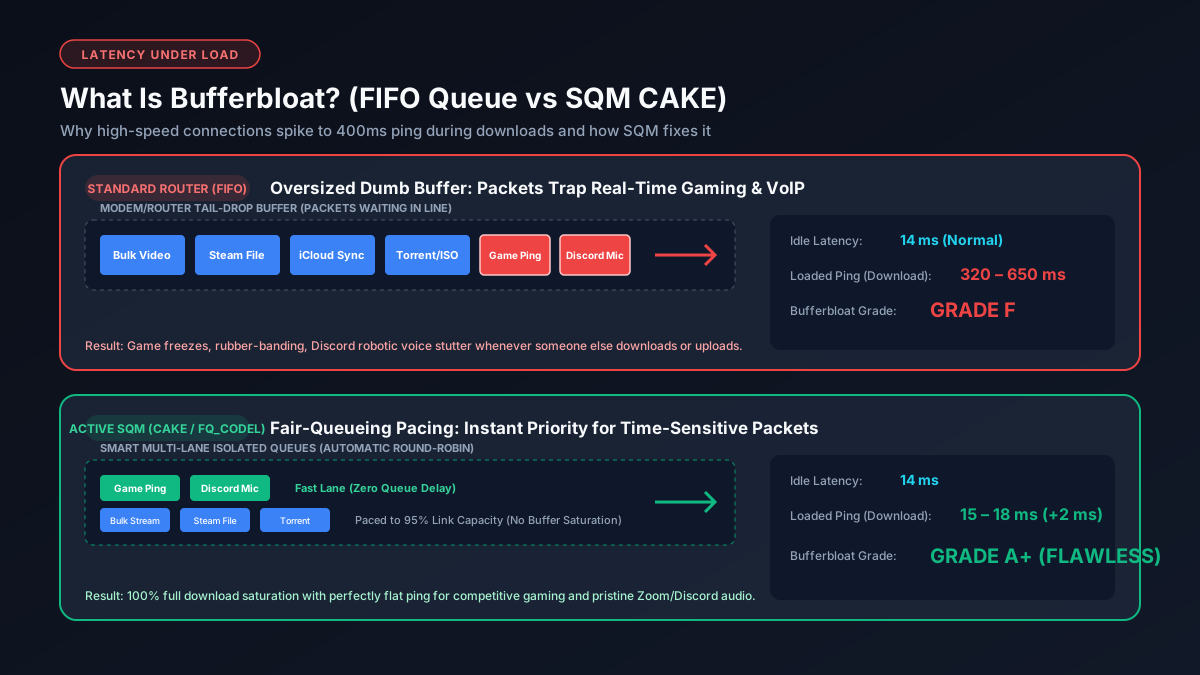
Idle Latency vs. Working Latency (Loaded Ping)
Standard internet speed tests often mislead consumers because they only display Idle Latency. When your network is completely idle, ping reflects only the physical distance of fiber and copper between your house and the server.
What actually determines multiplayer gaming smoothness and call quality is Working Latency (also called Latency Under Load). Standardized by the Internet Engineering Task Force in IETF RFC 8290, Active Queue Management algorithms were developed precisely because buffer delays on loaded residential lines routinely exceeded 1,000 milliseconds.
| Bufferbloat Grade | Added Latency Under Load | Impact on Online Gaming | Impact on Video Calls (Zoom) |
|---|---|---|---|
| Grade A+ | +0 ms to +5 ms | Flawless, zero hit registration delay | Crystal clear, zero audio stutter |
| Grade A | +5 ms to +15 ms | Competitive level, unnoticeable jitter | Perfect audio, smooth video |
| Grade B | +15 ms to +40 ms | Minor frame lag during downloads | Occasional video pixelation |
| Grade C – D | +40 ms to +150 ms | Frequent rubber-banding, teleporting | Noticeable robotic voice delay |
| Grade F | +150 ms to +1,000+ ms | Unplayable; disconnects from server | Call drops, audio freezing completely |
How to Test Your Connection for Bufferbloat
To measure how much your latency deteriorates under load, perform the following two tests:
- The Waveform Bufferbloat Test: Visit an active bufferbloat benchmarking tool. The test measures your idle ping, then blasts concurrent upstream and downstream HTTP streams while continuously pinging nearby servers. It calculates your added latency under load and assigns an A+ through F grade.
- The Manual Ping-Under-Load Test:
- Open Command Prompt (Windows) or Terminal (macOS).
- Run a continuous ping:
ping -t 1.1.1.1(Windows) orping 1.1.1.1(macOS). - Note your baseline ping (e.g., 18 ms).
- While the ping is running, start downloading a large game on Steam or run a high-speed file transfer using our Mbps to GB download calculator to push your pipe to 100%.
- Watch your ping counter. If the number jumps from 18 ms to 150 ms or starts displaying "Request timed out", your router is suffering from severe bufferbloat.
Why Legacy QoS Does Not Fix Bufferbloat
Many home routers feature a setting labeled "Quality of Service" (QoS). Traditional QoS relies on packet classification rules (e.g., inspecting port 3074 for Xbox Live or port 5060 for VoIP).
In modern networks, legacy QoS fails for two major reasons:
- End-to-End Encryption: Over 95% of web traffic is encrypted via TLS 1.3. Routers cannot inspect payload headers to determine what type of data is passing through.
- Fixed Priority Starvation: Prioritizing one device or port can completely starve other essential devices in your home of bandwidth, creating artificial deadlocks.
The Real Solution: Smart Queue Management (SQM)
The only definitive engineering solution to bufferbloat is Smart Queue Management (SQM), specifically modern fair-queuing algorithms like fq_codel (Flow Queueing Controlled Delay) and CAKE (Common Applications Kept Enhanced).
Unlike dumb FIFO buffers or legacy QoS, SQM works by actively controlling queue length and enforcing two principles:
- Per-Flow Fair Queueing: SQM separates traffic into hundreds of isolated hash buckets. A multi-gigabyte Steam download is placed into one bucket, while Discord voice packets and game inputs are placed in separate, dedicated buckets. The router serves these buckets in a rapid round-robin fashion, ensuring large downloads can never block small, time-critical packets.
- Explicit Rate Limiting (Egress/Ingress Shaping): SQM configures the router to artificially cap total throughput at approximately 90% to 95% of your true link speed. By keeping utilization slightly below the physical ceiling, the bottleneck shifts away from the ISP modem's unmanaged buffer directly into the router's smart, managed queue.
How to Eliminate Bufferbloat on Your Network
To eliminate bufferbloat and achieve an A+ grade, choose one of the following hardware and firmware strategies:
- Turn On "Optimize for Gaming" on Eero Mesh Routers: Eero routers have an implementation of fq_codel built in. In the Eero mobile app, navigate to Settings → Network Settings → Eero Labs → Optimize for Conferencing and Gaming. This immediately stabilizes working latency.
- Deploy an OpenWrt Router Running CAKE: OpenWrt is an open-source router firmware with the most advanced implementation of the CAKE algorithm available today. Setting your download and upload shaper to 95% of your tested speeds completely flattens loaded ping. We detail capable hardware options in our guide to the best routers for gigabit connections.
- Enable Smart Queues in Ubiquiti UniFi: In UniFi Network Controller, go to Settings → Internet → WAN Configuration and toggle on Smart Queues. Enter your measured upload and download rates.
- Connect via Direct Ethernet: Wi-Fi introduces half-duplex airtime buffer latency. Switching your gaming PC or console to a wired connection with a certified Cat6 cable removes wireless retransmission queues. Review our cable guide on the best cable for gigabit Ethernet to ensure your physical line is optimized.
Frequently Asked Questions
What is bufferbloat in simple terms?
Bufferbloat is high latency caused by routers holding too many packets in memory buffers when bandwidth is heavily utilized. While files download fast, time-sensitive gaming or voice packets get stuck behind bulk data, causing ping to spike from 15ms to 300ms+.
Does getting a faster gigabit plan eliminate bufferbloat?
No. Bufferbloat happens on 1,000 Mbps connections just as easily as 25 Mbps lines. The problem is buffer management at the bottleneck point, not bandwidth capacity. Saturated bandwidth without queue pacing always causes bufferbloat.
How much ping increase under load is normal?
On a properly tuned network with SQM, loaded ping should not increase by more than 0 to 5 ms over idle ping. An increase of over 30 ms indicates bufferbloat that will actively degrade competitive gaming.
Can bufferbloat be fixed without buying a new router?
Sometimes. Check if your current router supports SQM or has an open-source firmware port (like OpenWrt or Asuswrt-Merlin). Alternatively, capping download rates inside individual apps (like Steam's download speed limiter) prevents your connection from hitting 100% saturation.
Explore More Latency & Speed Optimization Tools
- Good Mbps for Gaming Guide — understand why raw bandwidth matters far less than ping stability and low jitter.
- Steam Download Calculator — estimate download times and determine proper speed limiters for background game downloads.
- Why Am I Not Getting Gigabit Speeds? — troubleshoot hardware bottlenecks across modems, routers, and switches.