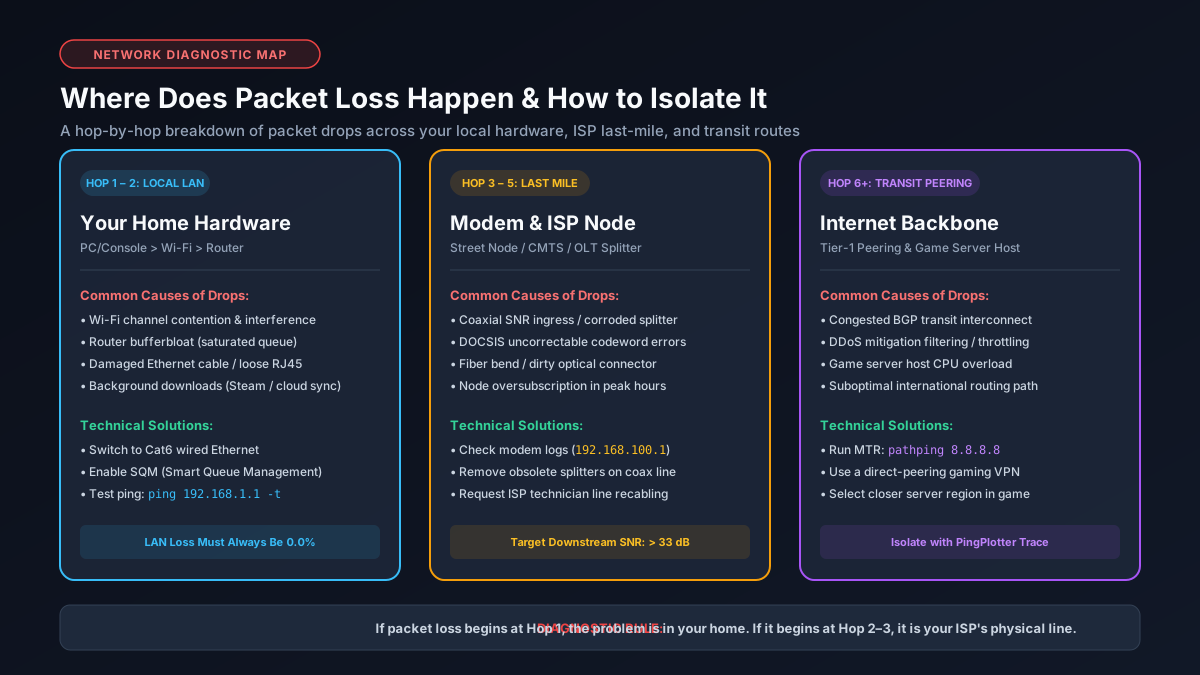
1. What Is Packet Loss? (UDP Drops vs. TCP Congestion Window Collapse)
Every internet communication—whether streaming a 4K movie, transmitting a player coordinate in a first-person shooter, or loading a webpage—is broken down into discrete packets of digital information. When intermediate routers, cables, or wireless radio waves drop one or more of these packets, packet loss occurs.
Modern internet traffic relies on two fundamental transport layer protocols, which handle dropped packets in vastly different ways:
- TCP (Transmission Control Protocol): Designed for guaranteed reliability (web browsing, file downloads, secure transactions). When a packet drops, the receiving system stops, alerts the sender, and requests a retransmission. To prevent network collapse, TCP's congestion avoidance algorithm (AIMD) cuts the congestion window (CWND) in half. While data integrity is preserved, your effective throughput collapses. Check your transfer baseline on our Mbps to MB/s converter.
- UDP (User Datagram Protocol): Designed for real-time speed without acknowledgment delays (multiplayer gaming telemetry, Discord/Zoom voice, live sports streaming). When a UDP packet drops in an online match, it is lost forever. The game client cannot render your character's latest position, causing you to snap backward in time (rubberbanding), miss shot registrations, or hear chopped-up syllables in voice calls. Standardized research under IETF RFC 2681 IP Performance Metrics confirms that delivery delay variance and lost packets represent the primary cause of poor interactive network quality.
2. Acceptable Packet Loss Thresholds for Esports, Video Calls & 4K Streaming
How noticeable packet loss feels depends directly on the real-time sensitivity of the application running across your connection:
| Application & Workload | Acceptable Loss Limit | Real-World Observable Symptoms When Exceeded |
|---|---|---|
| Competitive Gaming (CS2, Valorant, Warzone) | 0.0% | Hit registration failure, rubberbanding, teleporting player models, sudden lobby disconnects. |
| VoIP & Video Calls (Zoom, Discord, Teams) | < 0.5% | Robotic audio distortion, audio cutouts, frozen video frames, desynchronized screen shares. |
| 4K Video Streaming (Netflix, YouTube) | < 2.0% | Video resolution drops from 4K to 720p, buffering wheel stalls. Review our 4K streaming data guide. |
| Web Browsing & Large File Downloads | < 3.0% | Slower overall transfer rates due to TCP retransmissions. Use our download time calculator to verify. |
3. Physical Layer Causes: Damaged Coax, Splitter Degradation & Bad Ethernet
In residential networks, physical infrastructure degradation causes over 50% of chronic packet loss cases:
- Failing Coaxial Cable Splitters: Passive coaxial splitters weaken signal strength by 3.5 dB to 7.0 dB per split port. Cheap, unshielded gold splitters allow external radio frequency noise (ingress) to contaminate cable modem frequencies.
- Corroded Outdoor Drop Cables: Water intrusion inside outdoor coaxial lines or loose ground blocks degrades signal-to-noise ratios (SNR), causing thousands of uncorrectable FEC codewords.
- Substandard or Damaged Ethernet: Kinked cables, bent RJ45 connector pins, or cheap Copper-Clad Aluminum (CCA) wiring cannot sustain high-speed signaling, generating Frame Check Sequence (FCS) CRC errors. Read our guide on the best Ethernet cable for gigabit internet.
4. Wi-Fi vs. Wired Ethernet: CSMA/CA Airtime Contention and Interference
Wi-Fi is a half-duplex shared medium operating under CSMA/CA (Carrier Sense Multiple Access with Collision Avoidance). Unlike hardwired Ethernet cables that transmit data over dedicated, shielded copper pairs, Wi-Fi radios must constantly listen to ensure airwaves are clear before transmitting.
Interference from neighboring networks, Bluetooth transmitters, microwave ovens, and physical building walls causes wireless frames to collide in mid-air. When a collision occurs, the sending radio discards the packet and executes an exponential backoff delay. Over crowded 2.4 GHz channels, this results in packet loss spikes between 2% and 15%. For competitive gaming, switching to a Cat6 Ethernet cable is the single most effective fix. Explore our diagnostic breakdown on why Wi-Fi is slower than advertised.
5. Bufferbloat and Queue Congestion: How Overfilled Buffers Drop Packets
Packet loss frequently occurs even when cables and signals are in perfect condition. When multiple devices in your home share an internet connection, cheap routers suffer from Bufferbloat.
Most consumer routers use simple First-In, First-Out (FIFO) packet buffers. When someone begins downloading a large file or streaming 4K video, the router fills its internal RAM memory to 100% capacity. Once the queue is full (tail-drop state), any incoming real-time UDP gaming or voice packets are discarded instantly. Enabling Smart Queue Management (SQM) with modern algorithms like CAKE or fq_codel dynamically separates traffic into independent micro-queues, eliminating bufferbloat-induced packet loss. Read our complete walkthrough on what bufferbloat is and how to eliminate it.
6. MTU Mismatches & Packet Fragmentation: Finding Your Optimal MTU Value
The Maximum Transmission Unit (MTU) specifies the maximum size in bytes that an individual IP packet can have without being fragmented across a network link. The standard Ethernet MTU is 1500 bytes.
However, if your ISP uses PPPoE (common in DSL and certain fiber networks) or if you run a VPN tunnel, additional header encapsulation consumes 8 to 40 bytes. If your computer attempts to transmit a 1500-byte packet with the "Don't Fragment" (DF) flag set across a link that only supports 1492 bytes, the router silently drops the packet. You can identify your exact optimal MTU in Command Prompt using this test:
If the command returns "Packet needs to be fragmented but DF set", lower the size by 10 (e.g., 1462) until you receive replies, then add 28 bytes (IP/ICMP header size) to determine your ideal MTU setting for your router administration panel.
7. Step-by-Step Diagnostics: Isolating Loss With Ping, MTR & PingPlotter
To eliminate packet loss, you must determine exactly where along the network route packets are dropping. Follow this three-step isolation workflow:
- Step 1: Test Your Local Home Network: Open Command Prompt or Terminal and execute
ping 192.168.1.1 -n 100(replace with your router's gateway IP). If you observe any packet loss here, the problem is 100% inside your house (your PC network card, Ethernet cable, or router). - Step 2: Inspect Cable Modem Signal Health: Navigate to
192.168.100.1in your web browser. Check the downstream and upstream channels. If you see high numbers of "Uncorrectable Codewords", electrical line noise on your coaxial line is dropping packets before they reach the router. - Step 3: Run Hop-by-Hop Traceroutes with MTR: Download PingPlotter or run WinMTR against an external game server or
1.1.1.1. MTR pings every router along the path:- Loss at Hop 1: Faulty local home router or bad Ethernet cable.
- Loss starting at Hop 2: ISP neighborhood node (CMTS/OLT) congestion or damaged street cabling.
- Loss only at a middle hop: Tier-1 carrier backbone congestion; contact ISP for routing review.
- Loss only at final destination: Target game server rate-limiting ICMP traffic.
If high latency accompanies your packet loss, review our guide on why ping is high despite having fast internet.
8. Actionable Fixes: From Local Hardware to ISP Line Escalation
Once you have diagnosed the origin of your packet loss, apply these sequential remedies:
- Hardwire with Pure Copper Cat6: Disconnect from Wi-Fi and plug directly into your router with a certified Cat6 patch cable to rule out radio interference.
- Bypass In-Line Coaxial Splitters: Connect your cable modem directly to the primary coaxial wall outlet coming from outside to eliminate 3.5 dB to 7 dB of signal attenuation.
- Configure SQM QoS on Your Router: In your router's admin interface, enable Smart Queue Management (CAKE or fq_codel) and set bandwidth limits to 90–95% of your plan's maximum speed. This guarantees room in packet buffers during heavy downloads. Review minimum needs in our good speed for gaming guide.
- Escalate to Your ISP with Diagnostics: If your PingPlotter log proves packet loss begins at Hop 2, contact your ISP's technical support tier. Provide the exact hop IP and timestamps. Request a line technician to check the outdoor tap, re-balance signal levels, and replace corroded drop lines.
9. Hardware Upgrades: Modems, Routers & Cabling That Prevent Packet Loss
If older equipment cannot sustain stable connections, upgrading to purpose-built hardware will permanently resolve persistent packet loss:
- DOCSIS 3.1 Multi-Gigabit Cable Modems: Older DOCSIS 3.0 modems (especially those with flawed Intel Puma 6 chipsets) suffer from severe internal packet queuing jitter. Modern DOCSIS 3.1 modems with Broadcom chipsets (such as the ARRIS S33 and S34) feature robust OFDM error correction. Check our recommendations in the best modem for Xfinity guide.
- High-Performance Wi-Fi 6 & Wi-Fi 7 Routers: Modern routers with powerful quad-core processors handle packet switching and SQM without dropping packets under heavy multi-device loads. Explore our selections in the best router for gigabit internet guide.
- Quality Shielded Patch Cabling: Upgrade fragile legacy patch cables with certified Cat6 or Cat6a cabling. Review our complete testing in the Cat6 vs Cat7 vs Cat8 Ethernet guide.