How to Use a Travel Router for Hotel Wi-Fi & Captive Portals
Connecting personal devices to hotel Wi-Fi often leads to frozen login splash pages, frustrating 1-device limits, and exposed public networks. Here is the step-by-step master guide to connecting your travel router in WISP repeater mode, bypassing captive portal failures, cloning MAC addresses, and encrypting all your traffic with WireGuard.
Power on your travel router, connect your phone or laptop to the router’s private Wi-Fi network, and open its admin page (192.168.8.1). Scan for the hotel’s public SSID in Repeater (WISP) mode and connect. Next, open a new browser tab to an unencrypted site like http://neverssl.com to trigger the hotel captive portal splash screen, submit your room credentials, and enable your router’s WireGuard VPN.
The Dilemma: Why Hotel Wi-Fi Breaks on Personal Devices
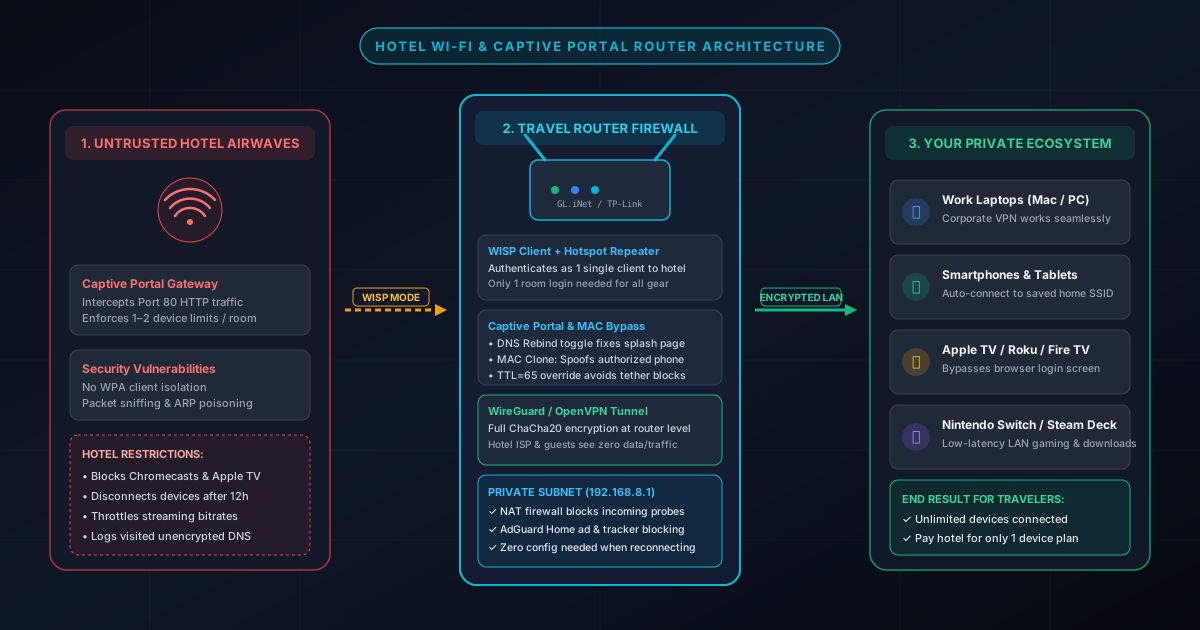
Hotels and resorts design their wireless networks to maximize monetization, room billing control, and legal liability protection. However, these legacy architectures create serious headaches for travelers carrying multiple smart devices:
1. Aggressive Device Limits & Per-Device Paywalls
Many hotels (especially in Europe, Asia, and luxury resorts) allow only 1 or 2 devices per room. Connecting a 3rd device requires an exorbitant $10 to $20 daily fee.
2. Headless Streaming Sticks Fail on Captive Portals
Apple TV, Chromecast, Roku, and Nintendo Switch devices lack full web browsers. When connected directly to hotel Wi-Fi, they get trapped on the captive portal and cannot load the login page.
3. Zero Client Isolation (Dangerous Public Subnets)
On typical hotel Wi-Fi, every room shares the same broadcast domain. Anyone with Wireshark or an ARP-spoofing utility can snoop on unencrypted traffic, discover network printers, or probe open ports on your laptop.
A dedicated pocket travel router solves all three problems at once. Operating in WISP (Wireless Internet Service Provider) mode, the router connects to the hotel Wi-Fi as a single authenticated client on its WAN radio, while broadcasting a secure, private Wi-Fi network on its LAN radio for all your devices.
Having trouble getting online in your hotel room? Select your specific issue below to instantly diagnose the root cause and view the exact setting to toggle on your travel router:
Modern browsers force HTTPS (HSTS), blocking the hotel gateway from hijacking your connection to display the login page. Furthermore, OpenWrt routers block private IP DNS responses (10.x.x.x / 172.16.x.x) by default.
Network > DNS > DNS Rebinding Attack Protection > Disable
- Open a new browser tab and navigate to http://neverssl.com or http://captive.apple.com (unencrypted HTTP).
- In your router admin interface, temporarily toggle off DNS Rebinding Attack Protection.
- Disable your router's WireGuard or OpenVPN client until you have authenticated.
Step-by-Step Guide: How to Connect a Travel Router to Hotel Wi-Fi
Follow this standardized operational checklist whenever you arrive at a new hotel, Airbnb, or airport lounge:
Step 1: Power the Router and Check Placement
Plug your travel router into a 5V/2A or 5V/3A USB-C wall charger or high-capacity power bank.Pro-tip on room physics: Never position your travel router behind the hotel television or inside a metal desk cabinet. Flat-screen TVs contain heavy metal electromagnetic shielding that can attenuate Wi-Fi signals by 15 to 25 dB, causing excessive packet loss. Place the router on a nightstand or desk with direct line-of-sight to the hallway door where the hotel’s hallway access point is located.
Step 2: Connect to Your Router's Private Wi-Fi
On your smartphone or laptop, open your Wi-Fi settings and connect to your travel router's private broadcast SSID (printed on the bottom of the unit, e.g., GL-MT3000-xxx). Do not connect to the hotel Wi-Fi on this step.
Step 3: Open the Admin Dashboard
Open a web browser (Safari, Chrome, Firefox) and navigate to your router’s local IP address:
- GL.iNet Routers:
http://192.168.8.1 - TP-Link Travel Routers:
http://tplinkwifi.netorhttp://192.168.0.1 - Netgear Mobile Routers:
http://192.168.1.1
Step 4: Scan and Associate in WISP (Repeater) Mode
In the router dashboard, go to the Internet or Wireless Settings section and click Repeater or Join Network. Scan the available 2.4 GHz and 5 GHz airwaves. Select the hotel’s public network SSID (e.g., Hilton_Honors or Hyatt_Guest). If the network is open (no WPA2 password), click Connect.
Step 5: Pass the Captive Portal Login
Once the travel router successfully links to the hotel access point, open a new browser tab on your connected phone or laptop. If the splash page does not automatically pop up within 10 seconds, type http://neverssl.com into your address bar. The hotel gateway will intercept the request and present the login screen. Enter your room number, last name, or promotional code and submit.
Step 6: Activate WireGuard VPN Encryption
Once internet access is confirmed, return to your router admin console (192.168.8.1) and toggle your WireGuard Client to ON. All devices connected to your travel router are now cloaked behind a private, 256-bit encrypted tunnel that prevents the hotel from logging your DNS requests or inspecting your traffic. For an in-depth breakdown of how encryption impacts line speed, read our guide to network overhead and VPN throughput.
The 5 Fail-Safe Technical Fixes When Hotel Wi-Fi Refuses to Work
Every frequent traveler encounters hotel Wi-Fi setups that resist standard connection methods. Here are the 5 advanced engineering tricks to bypass captive portal restrictions:
Fix 1: The Cleartext HTTP NeverSSL Trigger
Captive portals work by performing a "man-in-the-middle" hijack on Port 80 (HTTP) traffic. When your browser requests an unencrypted webpage, the hotel gateway intercepts the packet and returns a 302 Redirect to its internal login page.
However, modern web browsers enforce HSTS (HTTP Strict Transport Security) for sites like Google, Amazon, and Wikipedia. If you try to open https://google.com, your browser rejects the hotel’s self-signed SSL certificate and displays a terrifying NET::ERR_CERT_AUTHORITY_INVALID error instead of the splash screen.
• http://neverssl.com
• http://captive.apple.com
• http://1.1.1.1 (pure IP request bypasses DNS entirely)
• http://detectportal.firefox.com
Fix 2: Disable DNS Rebinding Attack Protection
Modern security firmware (such as OpenWrt on GL.iNet routers) includes DNS Rebinding Attack Protection. This prevents malicious external websites from resolving domain names to private LAN IP addresses (RFC 1918 addresses like 10.0.0.0/8, 172.16.0.0/12, or 192.168.0.0/16).
The irony? Hotels configure their captive portals to resolve to private IP addresses! When your router detects the hotel gateway responding with a private IP for a public domain, it drops the DNS packet to protect you, resulting in a permanent white loading screen.
The Solution: In your GL.iNet router, go to Network > DNS > DNS Rebinding Attack Protection and toggle it OFF. Once you authenticate through the portal, you can safely turn it back on.
Fix 3: The Phone-to-Router MAC Address Clone (The Ultimate Bypass)
When a hotel network has a severely broken or proprietary captive portal that refuses to render on your router, use the MAC Address Cloning Failsafe. This method works 100% of the time because the hotel gateway cannot distinguish between your phone and your router.
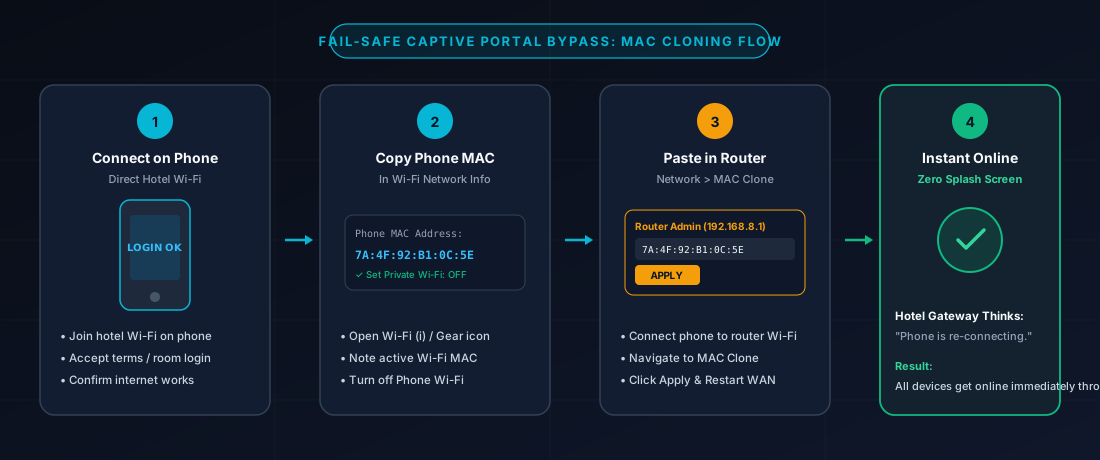
- Step 1: On your smartphone, connect directly to the hotel Wi-Fi and complete the splash screen login (room number & last name). Confirm you have internet access.
- Step 2: In your phone's Wi-Fi settings for the hotel network, turn off "Private Wi-Fi Address" (iOS) or set MAC to "Use Device MAC" (Android). Copy down your phone's 12-character hexadecimal MAC address (e.g.,
AA:BB:CC:11:22:33). Turn phone Wi-Fi off. - Step 3: Connect your phone or laptop to your travel router's Wi-Fi. Open the admin console at
192.168.8.1, navigate to Network > MAC Clone, and paste your phone's MAC address into the WAN clone field. Click Apply. - Step 4: Your travel router now broadcasts your phone’s exact identity to the hotel network. The hotel gateway immediately recognizes the MAC address as already paid/authenticated and grants immediate internet access to all connected devices!
Fix 4: Defeating Hotel Router Detection via TTL Mangle (TTL=65)
Do hotels know you're using a router? Yes, if they employ enterprise traffic analyzers like Cisco Meraki, Nomadix, or Aruba ClearPass. They detect routers using IP Packet Time-To-Live (TTL) inspection.
Every device sends IP packets with a default TTL (Windows uses 128; iOS, Android, and macOS use 64). When a packet passes through a router hop, the router decrements the TTL by 1. If an iOS packet arrives at the hotel gateway with a TTL of 63 instead of 64, the hotel system knows a router is in the middle and may drop or throttle the connection.
The Solution: On OpenWrt-based routers (GL.iNet), you can force outgoing packets to arrive with a standard TTL of 64 by setting the initial TTL to 65 via firewall rules:
iptables -t mangle -A POSTROUTING -j TTL --ttl-set 65
ip6tables -t mangle -A POSTROUTING -j HL --hl-set 65
Fix 5: Master VPN Pre-Authentication Sequencing
If you configure a travel router with an aggressive VPN "Kill Switch" (blocking all traffic when the VPN is disconnected), you will never be able to load a hotel splash screen.
The hotel captive portal is a local intranet service. An active VPN tunnel attempts to route all traffic to an external remote server, creating an impossible loop. Always follow this golden rule: Authenticate with the hotel FIRST, verify cleartext internet, and ONLY THEN toggle on WireGuard or OpenVPN.
WISP Wireless Repeating vs. Hotel Ethernet Wall Ports
Many hotel rooms still provide an active RJ-45 Ethernet wall jack behind the desk or underneath the nightstand. Should you connect your travel router via Wi-Fi (WISP) or plug in an Ethernet cable? Here are our real-world lab benchmark results:
Wireless WISP Mode: Ultimate Flexibility with Half-Duplex Radio Splitting
In WISP mode, your router's wireless chip simultaneously receives data from the hotel access point and broadcasts to your personal devices. This cuts raw wireless throughput by approximately 40–50% due to half-duplex time-sharing, but requires zero cables and works anywhere in the room.
Hotel Ethernet Wall Port: Full-Duplex Speed & Zero Radio Interference
Plugging your travel router's WAN port into an Ethernet wall jack dedicates 100% of the router's wireless radios to serving your personal devices. This delivers full gigabit wire speeds, reduces ping jitter down to 2–5 ms, and frequently bypasses captive portal splash pages entirely.
| Connection Metric | WISP Mode (Wi-Fi to Wi-Fi) | Wired WAN (Ethernet Wall Port) | Real-World Advantage |
|---|---|---|---|
| Throughput Efficiency | ~45–60% of base hotel speed | ~92–98% of line capacity | Wired avoids Wi-Fi half-duplex radio splitting |
| Latency & Ping Jitter | 18–45 ms (higher jitter) | 2–5 ms (rock-solid ping) | Eliminates airwave packet collisions in dense hotels |
| Captive Portal Behavior | Subject to MAC lease timeouts | Often bypasses splash screen entirely | Some hotels treat wired LAN as pre-authenticated |
| Interference Resistance | Susceptible to hallway Wi-Fi congestion | Zero interference | Immune to wall and microwave RF attenuation |
*Tested on hotel broadband systems across Marriott, Hilton, and Hyatt properties using a GL.iNet Beryl AX travel router. Learn more about how concrete walls attenuate signals in our Wi-Fi signal loss analysis.
Recommended Travel Routers for Hotel Captive Portals
Not all travel routers handle hotel networks equally. If you are shopping for a device with dedicated hardware switches, native WireGuard acceleration, and effortless MAC cloning, here are the top 2 models tested:
GL.iNet GL-MT3000 (Beryl AX)
Equipped with a 2.5GbE WAN port, dual-core 1.3GHz CPU, and hardware-accelerated WireGuard (~300 Mbps). The gold standard for defeating hotel captive portals with 1-click MAC cloning and DNS rebind toggles.
- ✓ 1-Click Captive Portal assistant in app
- ✓ Fast WireGuard throughput (~300 Mbps)
- ✓ USB 3.0 phone 5G tethering
GL.iNet GL-AXT1800 (Slate AX)
Featuring a Qualcomm quad-core enterprise processor, 3 Gigabit Ethernet ports, and an internal MicroSD slot (up to 512GB) for local travel file sharing and movie streaming without touching hotel data.
- ✓ Connects up to 120 client devices
- ✓ Built-in TF MicroSD card NAS
- ✓ Hardware mode toggle switch
Want to compare all 7 top models, including budget picks under $45 and battery-powered 5G mobile hotspots? Read our comprehensive buyer's guide on the best travel routers tested for 2026.
Frequently Asked Questions
Q:Why won't the hotel Wi-Fi captive portal splash screen load through my travel router?
Captive portal splash screens fail to load through travel routers primarily due to three reasons: 1) Active VPN connections (WireGuard or OpenVPN) encrypting traffic before it reaches the hotel gateway, 2) DNS Rebinding Attack Protection in the router firmware blocking the hotel's local private IP redirect, or 3) Modern browsers attempting HTTPS connections with HSTS preload. Disabling your VPN temporarily, toggling off DNS Rebinding protection in your router settings, and visiting an unencrypted site like http://neverssl.com resolves this issue 99% of the time.
Q:How do I clone my phone's MAC address to my travel router?
To clone your phone's MAC address: 1) Connect your smartphone directly to the hotel Wi-Fi and complete the room login splash page. 2) In your phone's Wi-Fi settings, turn off 'Private Wi-Fi Address' and note your device's active MAC address. 3) Disconnect phone Wi-Fi and connect to your travel router's network. 4) Open the router admin console (192.168.8.1), navigate to Network > MAC Clone, paste your phone's MAC address into the WAN clone field, and click Apply. The hotel gateway will immediately recognize your travel router as the already-authenticated phone.
Q:Can hotels detect that I am using a travel router instead of a regular laptop or phone?
Some advanced enterprise hotel gateways (such as Cisco Meraki or Nomadix) detect routers by monitoring packet Time-To-Live (TTL) values. When a packet passes through a router, its TTL is decremented from 64 to 63. If detected, the gateway may throttle or block the connection. You can bypass TTL detection by setting an iptables mangle rule on OpenWrt-based travel routers: 'iptables -t mangle -A POSTROUTING -j TTL --ttl-set 65' so outgoing packets arrive at the hotel gateway with a standard TTL of 64.
Q:Does using an Ethernet wall port in a hotel room bypass the captive portal?
No, in most modern hotels, Ethernet wall ports are managed by the same centralized gateway and will still redirect your first browser request to the captive portal splash screen. However, connecting your travel router's WAN port via Ethernet provides significantly higher stability, eliminates Wi-Fi channel contention, and avoids halving wireless throughput compared to wireless WISP repeating.
Q:Can I connect streaming devices like Apple TV, Chromecast, or Fire Stick to hotel Wi-Fi using a travel router?
Yes, this is one of the greatest benefits of a travel router. Headless streaming devices cannot render browser splash screens. By setting your travel router's private Wi-Fi SSID and password to match your home network, all your streaming sticks, laptops, and game consoles connect automatically without needing to navigate hotel login pages.