Quick Wins That Apply to Every Platform
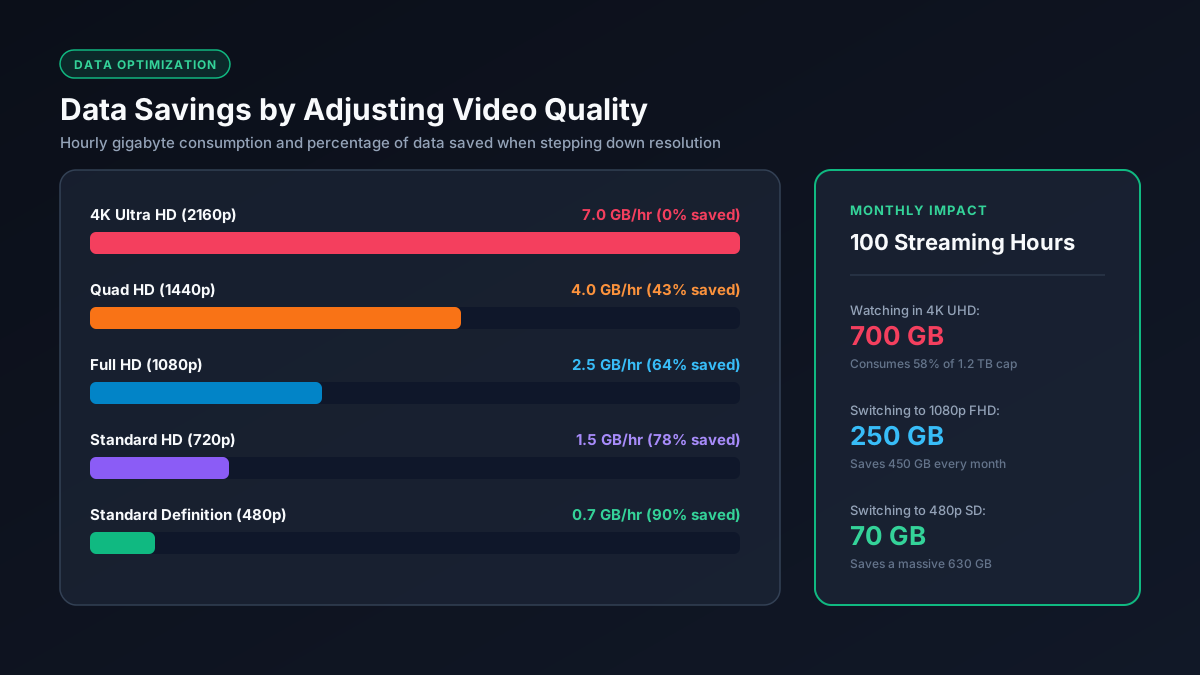
- Drop from 4K to HD, or HD to SD, whenever the screen is small enough that the difference will not be noticeable. A phone or tablet rarely benefits from 4K in a way that justifies 5 to 7 times the data usage.
- Turn off autoplay so idle scrolling or a forgotten "next episode" prompt does not quietly burn data while no one is watching.
- Download content over WiFi to watch later instead of streaming it repeatedly, since a download uses data once while streaming the same content multiple times uses it every time.
- Set a fixed quality instead of Auto wherever the app allows it, since Auto settings often default to higher quality than needed on a fast connection, even on a small screen.
Netflix
Go to Account, Playback Settings, and choose Low, Medium, or High instead of leaving it on the default. Low uses about 0.3GB per hour, Medium about 0.7GB, and High up to 7GB at 4K. Switching from High to Medium alone can cut Netflix's data footprint by roughly 75 percent. See our full Netflix data usage breakdown for the complete numbers by setting.
YouTube
Tap the gear icon on any video and choose a fixed resolution instead of Auto. Enabling Data Saver in the app's settings applies a lower quality cap automatically across all videos without needing to adjust each one individually. See our full YouTube data usage breakdown for exact figures by resolution.
Disney+, Max, Amazon Prime Video, and Similar Apps
Most major streaming apps include a similar data or video quality setting, usually under App Settings, Video Playback, or Data Usage. Look for options labeled Low, Standard, Better, or Best, and choose a middle tier for a solid balance between picture quality and data use on a capped plan.
Spotify and Music Apps
Music uses far less data than video to begin with, but if you want to reduce it further, go to Settings, Audio Quality, and set separate levels for WiFi and cellular streaming. Downloading playlists over WiFi means future listening uses no data at all, since it plays from local storage.
TikTok and Social Video Apps
Turn on Data Saver mode in the app's settings, which can cut usage by roughly half compared to default quality. Since these apps are built around continuous autoplay video, limiting total scrolling time has a bigger impact here than on apps where you actively choose what to watch.
Video Calls (Zoom, FaceTime, Teams)
Turning off HD video in call settings reduces data use by 30 to 40 percent with minimal visible quality loss on a laptop screen. Switching to audio-only when video is not necessary is the single biggest reduction available, cutting usage by 80 to 95 percent compared to a video call.
Router-Level Tricks That Work Across Every App
- Set device-level limits or schedules on router apps that support it (available on many Eero, Google WiFi, and Netgear systems), useful for managing a specific device or family member's usage without relying on every individual app's settings.
- Enable Quality of Service (QoS) on routers that support it, which prioritizes bandwidth for essential activities like video calls over less time-sensitive background downloads.
- Pause automatic updates on metered connections. Most phones and computers let you mark a network as "metered," which stops large automatic downloads like app updates from running without you noticing.
When Reducing Quality Isn't Worth It
If your plan is unlimited or has a high soft cap you rarely approach, none of this is necessary, and defaulting to the highest available quality is the better choice for picture quality. These settings matter most for capped plans, mobile hotspots, or households actively trying to stay under a specific monthly allowance. See our guide to how much data you actually need per month to figure out whether your household is realistically at risk of hitting a cap in the first place.
Frequently Asked Questions
What is the single most effective way to reduce streaming data usage?
Lowering video quality by one tier, such as from 4K to HD or HD to SD, typically cuts data usage by 60 to 75 percent and is more effective than any other single change.
Does turning off autoplay actually save meaningful data?
Yes, especially over time. Autoplay left running unattended, or a forgotten next episode prompt, can add hours of unwatched streaming data across a month without anyone noticing.
Is downloading content better than streaming for saving data?
Only if you plan to watch it more than once. A download uses data one time, while streaming the same content repeatedly uses that data again every time.
Do all streaming apps let you manually set video quality?
Most major apps do, usually under account or app settings, though the exact labels and location vary by platform.
Does reducing data usage on streaming apps actually protect against hitting a data cap?
Yes, since streaming is typically the largest data user in most households. Reducing streaming quality has a bigger overall impact on staying under a cap than adjusting smaller categories like smart home devices.