Direct Answer: Can eero and Orbi Form a Single Mesh Network?
The definitive engineering answer is no—Amazon eero and NETGEAR Orbi cannot merge into a single wireless mesh network. You cannot purchase an Orbi router and use an eero puck as a wireless satellite extender, nor can you wirelessly expand an existing eero network using an Orbi satellite.
However, both systems can exist simultaneously in the same home if you connect them via a physical Ethernet cable and configure one of the systems into Bridge Mode (for eero) or Access Point (AP) Mode (for Orbi). This prevents routing conflicts, eliminates Double NAT, and allows you to use one system for raw multi-gigabit wireless coverage and the other as a dedicated smart home hub.
Wireless Sync: Impossible
Proprietary backhaul algorithms prevent cross-vendor handshake. eero units only connect wirelessly to eero; Orbi units only connect to Orbi.
- • No Wi-Fi EasyMesh standard implementation
- • Incompatible 802.11k/v/r fast roaming frames
- • Wireless backhaul frequencies cannot cross-handshake
Wired Bridge: Fully Supported
By connecting via Ethernet cable and disabling DHCP/NAT on the secondary unit, both systems co-exist peacefully on the same LAN subnet.
- • Single unified IP subnet (e.g., 192.168.1.x)
- • Zero Double NAT penalties for gaming or VPNs
- • Keeps eero Matter/Thread/Zigbee radios active
Why TrueMesh and Orbi Protocols Are Mutually Incompatible
To understand why mesh routers from different brands cannot talk to each other, you have to examine how consumer mesh networking actually operates under the hood:
- Amazon TrueMesh (Dynamic Multi-Hop): eero uses proprietary routing software that dynamically calculates signal quality, packet loss, and RF congestion across all frequency bands (2.4 GHz, 5 GHz, 6 GHz). It uses specialized cryptographic handshakes and proprietary encapsulation frames that only other eero nodes running eeroOS can decode.
- NETGEAR Orbi FastLane3 / Quad-Band Architecture: Orbi systems rely on a deterministic, hardware-centric model where base units and satellites communicate over a pre-shared, locked-down radio frequency band (dedicated backhaul). Orbi firmware expects satellites to authenticate via NETGEAR's proprietary backhaul daemon.
While the Wi-Fi Alliance developed the Wi-Fi EasyMesh standard to encourage multi-vendor interoperability, neither Amazon nor NETGEAR has adopted it for their flagship product lines. Both companies purposefully lock their hardware into walled-garden ecosystems to maintain quality control, customer support predictability, and recurring software subscription revenue (read our eero vs. Orbi full comparison).
The Double NAT Trap: What Happens When You Daisy-Chain Both Routers
The most common mistake homeowners make is buying an eero pack and plugging its gateway WAN port directly into an open LAN port on their existing NETGEAR Orbi router (or vice versa) without altering any software settings. This creates an architectural nightmare known as Double NAT (Network Address Translation):
| Network Layer | Default Daisy-Chain (Double NAT) | Proper Bridge Mode Configuration |
|---|---|---|
| Subnet Structure | Two conflicting subnets: Orbi (192.168.1.x) and eero (192.168.4.x) | One flat subnet: All devices receive 192.168.1.x addresses from the primary router |
| Gaming NAT Type | Strict NAT / Moderate NAT (blocks multiplayer matchmaking) | Open NAT (full UPnP and port forwarding support) |
| Local Device Discovery | Devices on eero Wi-Fi cannot see wireless printers, NAS drives, or Plex servers on Orbi | Zero discovery barriers; AirPlay, Chromecast, and mDNS work across all nodes |
| VPN & VoIP Calls | Intermittent packet drops and one-way audio on Zoom/Teams calls | Clean packet flow without translated encapsulation overhead |
Configuration Setup 1: Orbi as Primary Router, eero in Bridge Mode
This is the most recommended topology for homeowners who already own an Orbi system and want to add eero units to take advantage of eero's built-in Matter/Thread/Zigbee smart home hub or cover an isolated outbuilding.
In this setup, your NETGEAR Orbi router handles all DHCP IP assignments, NAT routing, firewall protection, and port forwarding. The eero nodes act purely as "dumb" access points and smart home controllers.
Step 1: Physical Cabling
Connect your modem or fiber ONT to the yellow WAN port on your primary NETGEAR Orbi router. Take a high-grade Cat6 Ethernet cable and connect one end to an open LAN port on the Orbi router, and the other end to either Ethernet port on your primary eero gateway unit.
Step 2: Enable Bridge Mode in the eero App
Open the eero mobile app on iOS or Android → Navigate to Settings → Select Network Settings → Tap DHCP & NAT → Change the selection from Automatic to Bridge → Tap Save. Your eero units will reboot into Bridge Mode and receive IP addresses directly from your Orbi router.
Step 3: What Continues to Work
Even in Bridge Mode, eero continues to broadcast its own Wi-Fi network, its TrueMesh wireless link between multiple eero nodes remains active, and its Matter Border Router, Thread, and Zigbee radios remain 100% operational for your smart home ecosystem.
Configuration Setup 2: eero as Primary Router, Orbi in AP Mode
If you prefer Amazon eero's clean mobile app, automated cloud self-healing, and Smart Queue Management (SQM) for bufferbloat reduction, you can configure eero as your primary gateway and put your NETGEAR Orbi system into AP (Access Point) Mode.
Step 1: Physical Cabling
Connect your modem directly to the primary eero router. Then connect an Ethernet cable from the eero's second port into the Internet/WAN port of your NETGEAR Orbi base unit. (If you have multiple wired devices, insert an unmanaged gigabit switch after the eero).
Step 2: Access Orbi Web GUI (192.168.1.1)
Connect a laptop or computer to the Orbi Wi-Fi network → Open a web browser and navigate to http://192.168.1.1 or http://orbilogin.com → Log in using your admin credentials.
Step 3: Switch Orbi to AP Mode
Click the ADVANCED tab → Select Advanced Setup → Click Router / AP Mode → Select the radio button for AP Mode → Click Apply. The Orbi system will reboot and disable its internal DHCP server, allowing eero to assign all network IPs.
Wi-Fi Channel & SSID Strategy: Avoiding Interference & Sticky Clients
Once one of your systems is bridged, you must configure your wireless radios properly to avoid self-inflicted RF interference and disconnects:
-
Rule 1: NEVER assign the same SSID and password to both systems: Because eero and Orbi cannot communicate via 802.11k/v fast BSS transition protocols, client devices cannot roam intelligently between them. If your iPhone connects to the Orbi in the basement, it will stubbornly hold onto that 1-bar signal even if you walk directly next to an eero unit upstairs. Always name them distinctly, such as
Main-Orbi-Wi-FiandSmartHome-eero. - Rule 2: Manually adjust Orbi Wi-Fi channels: Since eero automatically shifts channels via cloud telemetry, use the Orbi Web GUI to lock your Orbi 2.4 GHz radio to a fixed, non-overlapping channel (Channel 1, 6, or 11) and choose a distinct 5 GHz channel (such as 36-48 or 149-165) to minimize co-channel RF interference.
- Rule 3: Keep nodes at least 30 feet apart: Placing an eero node in the same room as an Orbi router creates immediate adjacent-channel bleeding, reducing wireless throughput on both systems by up to 40%.
Smart Home Synergies: Using eero for Matter/Zigbee and Orbi for PC Throughput
While combining two mesh brands requires deliberate network hygiene, it offers a surprisingly potent hardware synergy for smart home power users:
The Optimized Dual-Ecosystem Setup
You can leverage the unique hardware strength of each manufacturer without compromise:
Hardware Comparison: Should You Keep Both or Consolidate?
Managing two distinct mesh systems requires two mobile apps, double the firmware maintenance, and extra wall plug adapters. If you are debating whether to keep both or consolidate into a single modern Wi-Fi 7 system, compare the leading options below:
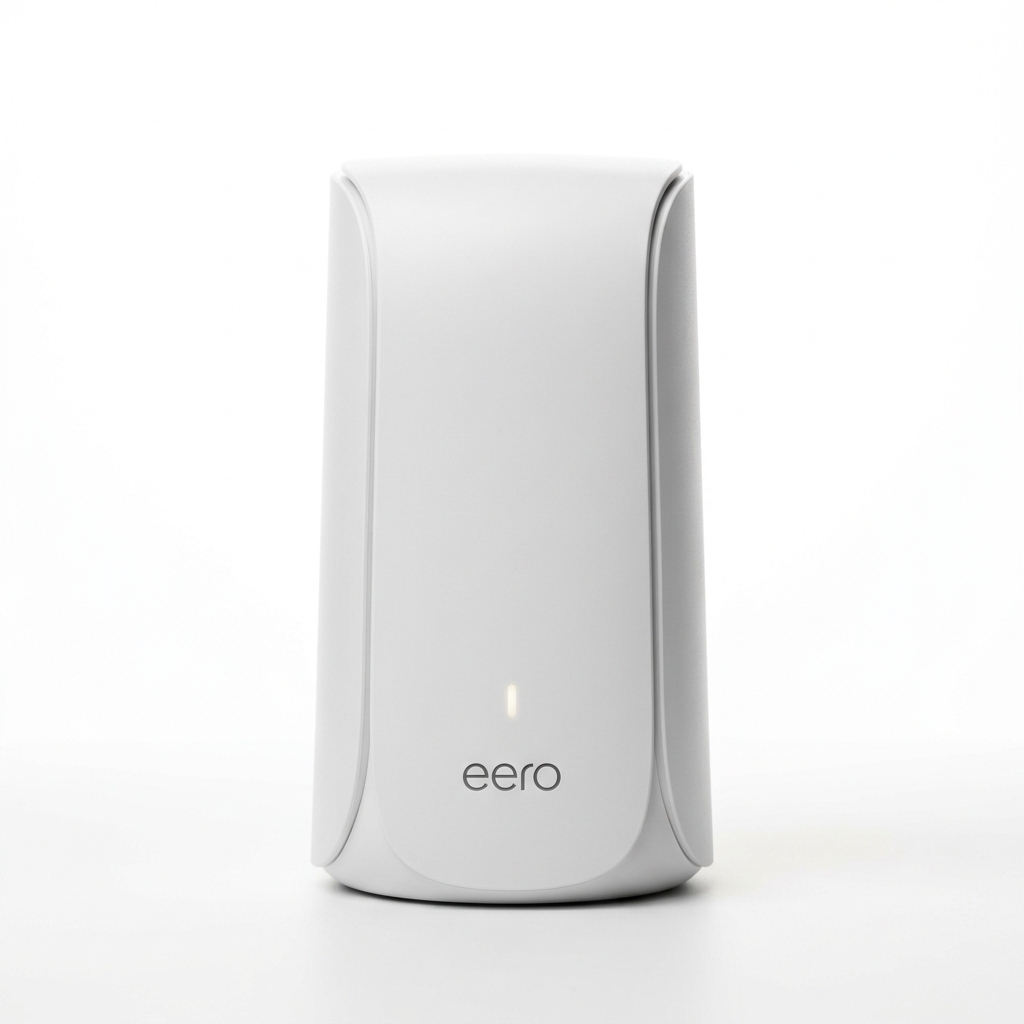
Amazon eero Max 7
If you love app simplicity, Matter/Thread hubs, and have wired Ethernet backhaul in your home, consolidating to eero Max 7 delivers dual 10GbE ports and BE20800 Wi-Fi 7 speeds.
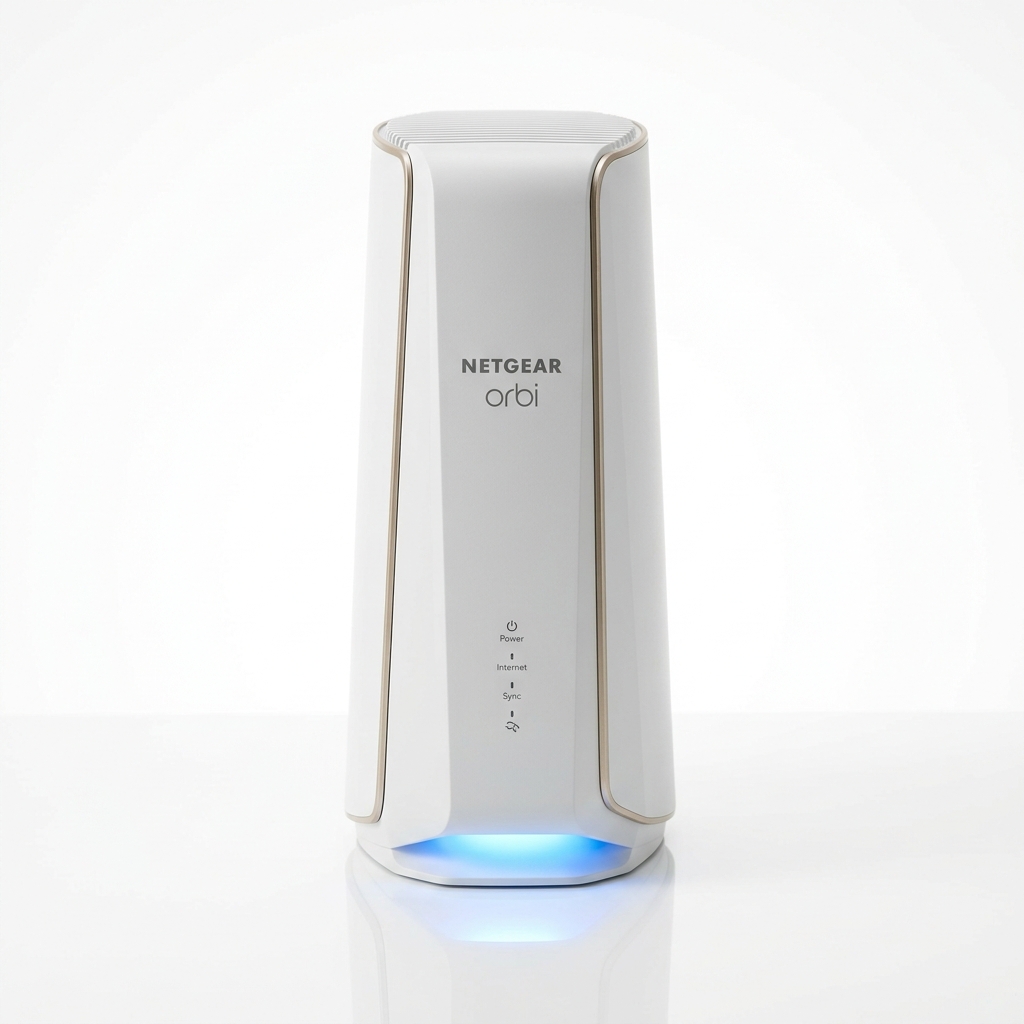
NETGEAR Orbi 970
If your home has no Ethernet wiring and you need maximum wireless backhaul range across 9,000+ sq ft, consolidating to Orbi 970 eliminates all setup complexity with dedicated 10.8 Gbps backhaul.
Step-by-Step Troubleshooting: Fixing IP Conflicts and Roaming Drops
If your network experiences sluggish performance, intermittent disconnection, or device invisibility after connecting both systems, follow this diagnostic checklist:
-
Symptom: Cannot access Orbi admin (192.168.1.1) after enabling AP Mode: When Orbi switches to AP Mode, its IP address is reassigned by the upstream eero router. Check the eero app client list to find Orbi's new IP address (usually
192.168.4.x) or navigate tohttp://orbilogin.comfrom a device on Orbi's Wi-Fi. - Symptom: Smart bulbs show "Offline" in Apple Home or Alexa: Ensure your smartphone and your smart home hubs are on the same local subnet. If your phone is on Orbi Wi-Fi and eero is NOT bridged, eero's internal firewall will block mDNS discovery packets. Putting eero into Bridge Mode immediately fixes this.
-
Symptom: High ping spikes and packet loss during gaming: Ensure you do not have both routers acting as DHCP servers. Run a command prompt on a connected PC and type
tracert 1.1.1.1. If you see two private IP hops (e.g., Hop 1:192.168.4.1and Hop 2:192.168.1.1), you are trapped in Double NAT. Verify that Bridge Mode or AP Mode is active.