Working from home offers unprecedented flexibility, but it also means your home internet connection doubles as your corporate lifeline. Few things are as frustrating as freezing in the middle of a crucial presentation, dropping out of a company all-hands call, or waiting an hour to upload a shared drive presentation.
Internet service providers heavily market gigabit internet plans for remote workers. They frequently tell prospective customers that 1,000 Mbps is mandatory for working from home. In reality, most office tasks require very modest bandwidth. The secret to a rock solid work from home setup lies not in massive gigabit download tiers, but in understanding upload speeds, latency, and router stability.
Exact Bandwidth Breakdown for Common WFH Tools
Every remote application has distinct network demands. Here is the actual bandwidth consumed by popular workplace software during normal business operations:
| Work Application | Download Needed | Upload Needed | Stability Impact |
|---|---|---|---|
| Zoom 1080p HD Group Call | 3.8 Mbps | 3.8 Mbps | High (Sensitive to packet loss) |
| Zoom 720p Standard Video | 2.0 Mbps | 2.0 Mbps | Medium |
| Microsoft Teams Screen Share | 4.0 Mbps | 4.0 Mbps | High (Frame rate drops on low upload) |
| Slack Huddle (Audio Only) | 0.5 Mbps | 0.5 Mbps | Low |
| Citrix / Remote Desktop (RDP) | 5.0 Mbps | 2.0 Mbps | Very High (Latency must stay under 50ms) |
| Google Docs / Sheets / Email | 1.0 Mbps | 0.5 Mbps | Very Low (Works on any basic tier) |
| OneDrive / Google Drive Sync | 25.0+ Mbps | 25.0+ Mbps | Variable (Can saturate weak upload connections) |
The Hidden Bottleneck: Why Upload Speed Decides Your Call Quality
When remote workers complain about internet trouble, they almost always blame their download speed. They upgrade from a 200 Mbps plan to an expensive 800 Mbps plan, yet their video calls continue to freeze. The reason is that most cable internet connections are asymmetrical.
A cable plan might give you 500 Mbps of download speed, but only 10 Mbps to 15 Mbps of upload speed. During a video call, your computer continuously streams your high-definition camera feed and screen output to the web. According to Zoom official system requirements, HD group meetings require sustained symmetrical bandwidth with minimal jitter.
If another family member uploads a phone backup, or if cloud storage initiates an automatic sync, your entire 10 Mbps upload channel becomes saturated. This causes severe packet queuing, commonly referred to as bufferbloat. Your voice instantly sounds robotic, and your video turns into a slideshow. To learn more about assessing your upload capacity, read our guide on what is a good upload speed.
How Many Mbps Do Different WFH Households Need?
50 to 100 Mbps
Perfect for an individual living alone. Gives you plenty of headroom for high-definition video calls, Spotify background music, and general web browsing without slowdowns.
200 to 300 Mbps
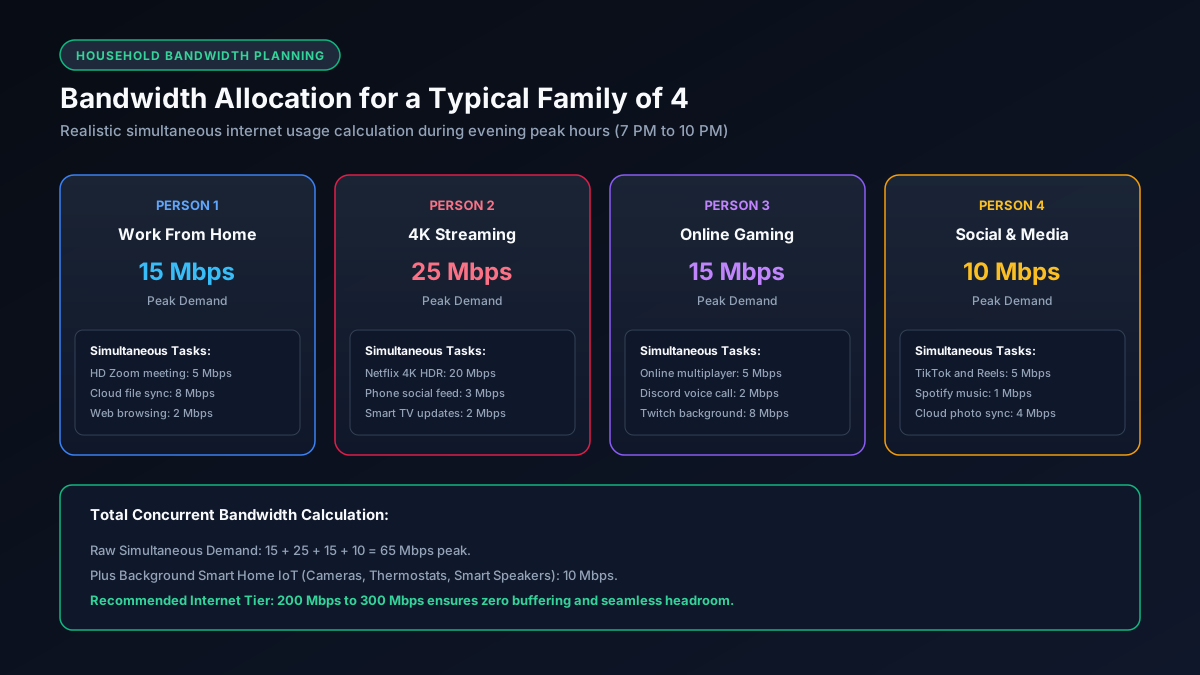
The sweet spot for couples working from home together. Allows two concurrent video meetings, simultaneous VPN access, and cloud document updates without either person lagging.
400 to 500 Mbps
Recommended if kids or roommates are streaming 4K television or playing video games during your workday. See our complete guide on Mbps for a family of 4.
Three Hardware Upgrades That Beat Buying Faster Internet
Before paying your internet provider an extra thirty dollars every single month for a faster plan, consider these three hardware fixes that directly improve call stability:
- Connect via an Ethernet cable: Wi-Fi signals suffer from physical attenuation and interference from walls and kitchen appliances. Running a Cat6 Ethernet cable directly from your router to your desk eliminates packet loss and slashes jitter to zero. Learn more in our Wi-Fi troubleshooting guide.
- Upgrade to a Wi-Fi 6 or Mesh Router: If running a cable is impossible, older Wi-Fi 4 and Wi-Fi 5 routers struggle when juggling dozens of smart home gadgets alongside work laptops. Modern routers with OFDMA schedule data packets with superior precision. Explore our top picks in our best router for gigabit internet guide.
- Enable Quality of Service (QoS) on your router: Most modern routers feature a QoS toggle in their settings. This setting instructs your router to always prioritize Zoom, Teams, and corporate VPN traffic ahead of Netflix streams or background phone updates.
Summary: The Verdict for Working from Home
You do not need an expensive gigabit plan to work from home effectively. For 90% of remote employees, a stable **100 Mbps to 300 Mbps** connection with at least **15 Mbps of upload speed** provides an exceptional, lag-free work experience. Prioritize low latency and wired connectivity over raw advertised megabits.