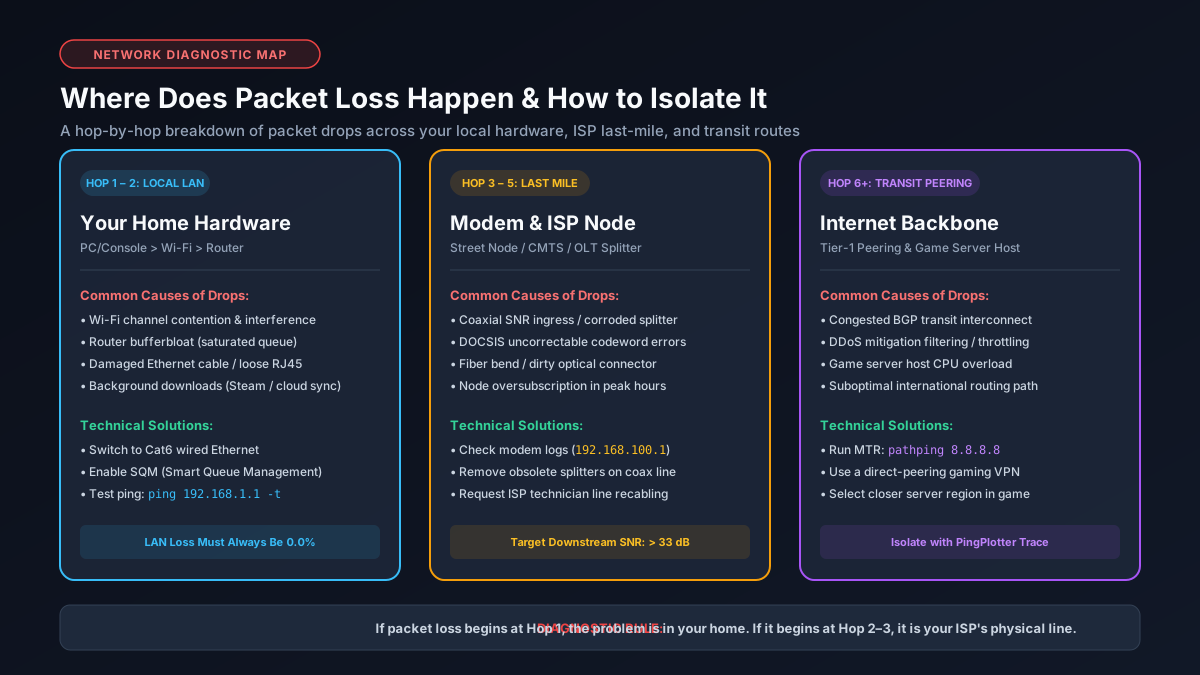
1. Ano ang Packet Loss? (UDP Drops laban sa TCP Retransmissions)
Nangyayari ang packet loss kapag ang mga packet ng data na naglalakbay sa IP network ay hindi nakakarating sa destinasyon nito. Hindi tulad ng ordinaryong ping na nagpapatagal lang ng data, ang packet loss ay nagdudulot ng rubberbanding sa online games, choppy na boses sa calls, at video buffering.
Network traffic relies on two fundamental transport layer protocols, which respond to packet loss in vastly different manners:
- TCP (Transmission Control Protocol): Connection-oriented and reliable. If a packet is lost, TCP pauses transfer, requests a retransmission, and shrinks its congestion window. While data integrity is preserved, overall throughput plunges.
- UDP (User Datagram Protocol): Connectionless and real-time. UDP sends packets without acknowledging receipt. Multiplayer games (telemetry, player coordinates) and VoIP voice streams rely on UDP. When a UDP packet drops, it is gone forever, causing characters to snap back into past positions (rubberbanding) or voices to drop syllables.
Research standardized under Mga Metriko ng Pagganap ng IP sa ilalim ng IETF RFC 2681 confirms that round-trip packet loss and delivery delay variance are the primary factors degrading user experience across interactive IP networks.
2. Katanggap-tanggap na Antas ng Packet Loss para sa Gaming at Streaming
The severity of packet loss depends entirely on the sensitivity of the application being used:
| Application Type | Acceptable Loss | Observable Symptoms When Exceeded |
|---|---|---|
| Competitive Gaming (FPS, MOBA) | 0.0% | Hit registration failure, rubberbanding, teleporting opponents. |
| VoIP & Video Calls (Zoom, Discord) | < 0.5% | Robotic audio distortion, audio cutouts, frozen webcam video. |
| 4K Video Streaming (Netflix, YouTube) | < 2.0% | Resolution dropping from 4K to 720p, buffer wheel loading stalls. |
| Web Browsing & Large File Downloads | < 3.0% | Slower download speeds due to TCP window backoff. Check speeds on our Mbps to MB/s converter. |
3. Mga Pisikal na Sanhi sa Hardware: Sirang Coax, Splitters, at Cat6 Cable
In residential networks, physical infrastructure faults account for a large percentage of sustained packet loss:
- Coaxial Cable Degradation: Moisture intrusion, animal chewed lines, or unshielded splitters create signal noise, causing downstream and upstream Uncorrectable Codewords on cable modems.
- Failing Splitters: Passive coaxial splitters weaken signal strength by 3.5 dB to 7.0 dB per split. Bad splitters introduce reflection noise that drops packets.
- Damaged or Substandard Ethernet: Kinked cables, bent RJ45 pins, or cheap copper-clad aluminum (CCA) cables fail to maintain gigabit signaling, leading to frame check sequence (FCS) drops. Read our guide on the best Ethernet cable for gigabit internet.
4. Packet Loss sa Wi-Fi laban sa Wired Ethernet (Radio Interference)
Wi-Fi is a half-duplex broadcast medium operating under CSMA/CA (Carrier Sense Multiple Access with Collision Avoidance). Unlike hardwired Ethernet cables that transmit data over dedicated, shielded copper twisted pairs, Wi-Fi must constantly contend for radio frequencies.
Radio frequency interference from neighboring routers, microwaves, Bluetooth devices, and thick concrete walls attenuates signal strength. When a collision occurs, Wi-Fi radios drop the frame and execute an exponential backoff algorithm. Over crowded 2.4 GHz bands, this results in packet loss spikes between 2% and 15%. For seamless gaming, switching to a wired Cat6 cable or upgrading to clean 6 GHz spectrum is critical. Learn more in our guide on why Wi-Fi is slower than advertised.
5. Bufferbloat sa Router at Pagsisikip ng Queue (Mga Solusyon sa SQM)
Packet loss does not only occur when wires fail; it regularly occurs when consumer routers are overwhelmed by simultaneous traffic. This condition is known as Bufferbloat.
Standard home routers have large First-In, First-Out (FIFO) packet buffers. When multiple devices download large files or stream video, the router's buffer queue fills completely. Once the queue reaches 100% capacity (tail drop), incoming UDP packets are discarded instantly, causing latency spikes and packet loss. Installing a router with Smart Queue Management (SQM) using modern algorithms like CAKE or FQ-CoDel dynamically manages queues and eliminates bufferbloat-induced packet loss. Explore our complete guide on what bufferbloat is and how to fix it.
6. Hindi Tugmang MTU Settings at IP Packet Fragmentation
The Maximum Transmission Unit (MTU) defines the maximum size in bytes of an IP packet that can traverse a network link without fragmentation. The global Ethernet default is 1500 bytes.
However, if your ISP uses PPPoE (common in DSL and certain fiber connections) or if you are running a VPN tunnel, packet encapsulation overhead adds 8 to 40 bytes to each header. If your device attempts to send a 1500-byte packet across a link with a maximum MTU of 1492 bytes, and the packet has the 'Don't Fragment' (DF) flag set, the router drops the packet entirely. You can test your optimal MTU in command prompt using: ping -f -l 1472 8.8.8.8.
7. Paano Suriin ang Packet Loss: Paraan Gamit ang Ping, MTR, at PingPlotter
To fix packet loss, you must first isolate exactly where along the network path the loss is occurring. Follow this diagnostic methodology:
- Continuous Local Gateway Ping: Open Terminal/Command Prompt and run
ping 192.168.1.1 -t. Let it run for 100 packets. If you see any packet loss here, the problem is 100% inside your home (your computer's NIC, Ethernet cable, or router). - Hop-by-Hop Traceroute with MTR or PingPlotter: Download PingPlotter or run WinMTR. Target an external IP (such as
1.1.1.1or your game server IP). MTR sends packets to every router along the path:- Loss only at Hop 1: Defective local router or cable.
- Loss starting at Hop 2: ISP street node (CMTS/OLT) congestion or damaged street coaxial line.
- Loss only at a middle transit hop: Tier-1 carrier congestion; requires ISP BGP rerouting.
- Loss only at final hop: Target server firewall rate-limiting or server load.
If high latency accompanies packet loss, check our breakdown on why ping is high with fast internet.
8. Hakbang-hakbang na Solusyon: Mula sa Hardware Hanggang sa ISP Report
Follow these actionable remedies to eliminate packet loss across all segments of your connection:
- Connect Directly via Cat6 Ethernet: Disconnect from Wi-Fi. A hardwired Cat6 connection immediately solves airtime congestion and eliminates wireless packet drops.
- Power Cycle Your Modem and Router: Unplug power from both units for 60 seconds to clear clogged memory buffers and force reconnection to clean frequency channels.
- Inspect Physical Coaxial Connectors: Tighten coax screw connectors with a wrench and remove unnecessary splitters between the wall outlet and cable modem.
- Enable SQM on Your Router: Turn on CAKE or FQ-CoDel QoS in router settings to prevent buffer queues from dropping gaming packets during heavy household use. Review bandwidth requirements in our good Mbps for gaming guide.
- Escalate to Your ISP: If PingPlotter proves packet loss begins at Hop 2 (the ISP CMTS), submit the diagnostic log to customer support and request a technician to test line signal levels and replace damaged tap connections.